|
1.
|
Do one of the following to enter symbol-editing mode:
|
|
2.
|
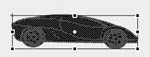
In the Tools panel, select the Free Transform tool and drag around the bottom car to select the entire car.
In symbol-editing mode, the car is a graphic, within a symbol, that you can manipulate as you would any other vector graphic. |
|
3.
|
Drag the middle-right sizing handle of the Free Transform tool slightly to the right to stretch the symbol.
|
|
4.
|
Click Scene 1, above the Timeline, to exit symbol-editing mode.
Both instances of the symbol reflect the transformation. |

by updated
