While the rest of this tutorial is specifically about the general retouching techniques I use in Photoshop in my daily work, in this tutorial, I've tried to give you some insight into the workspace, workflow, and workday of a professional image retoucher. If you're eager to get to image manipulation, Shadows and Lights jumps right in. But if you're planning on spending any time retouching photos professionally (or as a dedicated hobbyist), consider the following information. Knowing the basic setup and activity of a retoucher's studio can save you time and stress down the line.
The Photo Retoucher's Work Environment
I'll start this tutorial by telling you how I set up my workspace and how I get comfortable at my workstation. Being comfortable is very important, especially when you retouch for long hours. I have had some 16-hour days in my career. That's a lot of time on the mouse! And after nearly 20 years of retouching, I haven't ever had any neck, back, or arm ailments, including carpal tunnel syndrome.
Setting Up Your Workstation
In general, you should set up your workstation for what feels right for you. Here are some tips that I would recommend for your workstation.
First, I like to have my monitor up a bit higher than most people would; I lower my chair to achieve this. I would rather be looking up slightly than looking down at a monitor. When looking down on a monitor, I tend to get a sore neck. This way, when I'm looking straight at the monitor, I am looking at the middle of the screen, and I believe this position shown in following figure has prevented me from getting a sore neck.
Set up your workspace to avoid stress and injury
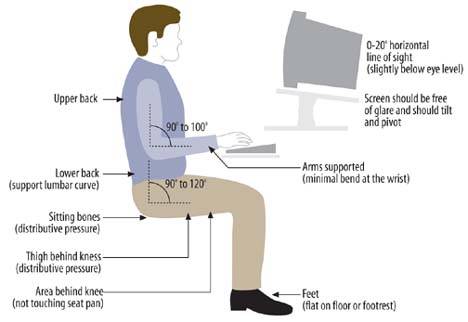
Second, when sitting at a computer desk, I like the corner position for my computer, which offers more room to stretch my legs and support my elbow. A corner placement also allows you plenty of room for the placement of a monitor, particularly if it is a large CRT monitor, which some people prefer. (Of course, if you use a flat screen monitor, this isn't an issue).
Also, I find that I can work on a computer for a long period of time if my arm is supported properly to the elbow. I have seen many computer setups where the keyboard, mouse, and monitor are placed on the straight portion of a desk. This offers little, if any support for your arms and I find it very awkward to work on, becoming very tiresome within a short period of time. I believe that people are much more prone to injury as well with a setup like that. I usually have an angled footrest as well, just enough to elevate my feet.
