You can protect yourself from the new guy. Avoid messes like this with FrontPage's document control feature.
Once you turn on document control and an author checks out a file, no one else can make changes to that file. Other authors see a small padlock next the file, so they know not to try.
You can turn on FrontPage's document control feature if you're using a disk-based (Where To Create Your Web Site) or a server-based siteas long as the server-based site is running FPSE; if your server has Share-Point instead, FrontPage flips on document control automatically.
Activating Document Control
Unless you're working on a server loaded with SharePoint services, you'll need to manually turn on the document check-in/check-out feature. To do so, select Tools » Site Settings. In the Site Settings dialog box that appears, turn on the "Use document check-in and check-out" checkbox. Next, you've got to specify in which of your sites (local or remote) FrontPage should apply the new checkout system:
-
Check out files from the Remote Web Site. FrontPage grays out this option if you haven't configured a remote site (Setting Publishing Preferences). Imagine that you're collaborating on a site with your old college roommate who lives across the country. You each edit pages on your local computers and then upload your pages to the site you share on the remote Web server. That's where FrontPage mounts its virtual sentry: on the remote Web server, so that neither of you overwrite each other's changes.
-
Check out files from the Local Web Site. Select this radio button if everyone's working on the same development server.
Covert Control
Say you're a site administrator and you have a few specific files that you want to protect from others, so you tell your staff you plan to activate document control. An uproar arises, because your team members don't want to have to check documents in and out.
You can solve this problem by imposing a kind of stealth document control. To do so, activate document control in the General tab of the Site Settings dialog box, but turn off the "Prompt to checkout file when opening a page" checkbox. Then you can check out the few files you want to protect, and your staff members won't be prompted to check out documents they open. In fact, they probably won't even know document control is on. However, because they're not checking documents out, they could overwrite each other's edits just as if you'd never activated the feature at all.
Checking Documents In and Out
There's not much to checking documents in and out. If you (or the person running your site) turn on the "Prompt to checkout file when opening a page" checkbox, then FrontPage prompts you to check out any document you open. If you click Yes, a checkmark appears next to the file showing you that you've got it checked out (others see a padlock). If you click No at the prompt, FrontPage opens the file and lets you edit as usualbut won't protect the file from being opened and modified by another author at the same time. You can also right-click a document and select Check Out.
If you try to open a document that's checked out by another author, FrontPage tells you who checked it out and asks if you want to open a read-only copy (in which you won't be able to save any edits). Most of the time, you'll click No and wait until the document is available. If you click yes, FrontPage opens a read-only copy for you to examine. If you want, you can save the file under another file name and edit that new incarnation of the page.
To check a document back in, just right-click it (see Figure 14-5) and select Check In.
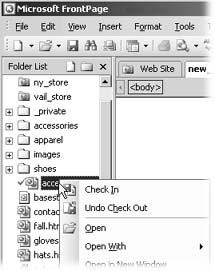
Figure 14-5. When you right-click a document you checked out, you can check it back in by selecting Check In. Or, you can turn back time by selecting Undo Check Out. FrontPage then returns the file back to its original state prior to checkout, erasing any edits you may have made.
When you have a lot of people working on a site, how do you know who's checked out what documents? You can see a comprehensive list at a glance by running the Checkout Status report. Select View » Reports » Workflow » Checkout Status.
