You not only have the power to send your visitors where you wish, you can control how destination pages display on their screen. For example, you can launch a linked page in a new, separate browser window. In this section, you'll also learn how to provide viewers with additional information about a hyperlink so they'll know whether or not they want to click it. You can even draw attention to your links using color and rollover effects.
Open a Target Page in a New Window
Unless you specify otherwise, hyperlinks open the destination page in the same browser window as the original page containing the link. The new page replaces the first page in the window. While a viewer can always press the back button on a browser, you may prefer to keep the original page open, while also displaying the destination page in a new window.
You can set this preference by adding a Target attribute to the hyperlink. This attribute specifies where the destination document opensin this case, a new browser window. To do this, click Target Frame within the Insert Hyperlink dialog box. Then, from the list of choices, select New Window. Other selections under Target Frame let you control hyperlinks created on pages that exist within a frameset. You'll learn all about frames and what these target options mean in Frames Tutorial.
Adding Screen Tips
The more information you share with your visitors, the better their experience is bound to be. While text often serves as a hyperlink and indicates where the link might go, it's not always so clear cut. What if the hyperlink is a graphic? In some cases, you'll want to provide more info about a link. You can do this by creating a screen tipa small yellow box of text that appears when a visitor passes his cursor over a hyperlink.
To add a screen tip to a hyperlink, open the Insert Hyperlink dialog box. Click Screen Tip, on the upper-right corner, and FrontPage presents you with the Set Hyperlink Screen Tip dialog box. Type in the text that you want to display and click OK.
Screen tips may not work in older browsersthose that predate Internet Explorer and Netscape 4.0.
Changing Hyperlink Colors
Colors can really help your hyperlinks stand out on a page as well as provide some guidance to visitors. For instance, you can help people navigate your site, by displaying links they've already followed in a different color.
Use the Page Properties dialog box to set link colors. Start by selecting File » Properties and then click the Formatting tab pictured in Figure 3-5. Within the drop-down lists for each different hyperlink state (Hyperlink, Visited Hyperlink, and so on), select the color you want.
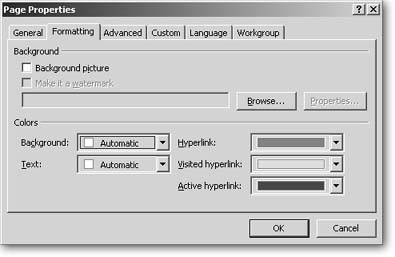
Figure 3-5. On the right side of the Formatting tab, you can set up a color scheme for your hyperlinks. In the Hyperlink field, set the color that links should be when a visitor first opens the page. Links that a viewer has already visited display in the color you choose for Visited Hyperlink. Active Hyperlink controls the color that displays while a visitor is clicking on a link. Experiment with a few schemes and test them in your browser.
Cascading Style Sheets, which you'll learn about in Cascading Style Sheets, offer a better way to set hyperlink colors. Using CSS, you don't need to set colors on each and every page, but you can configure this setting just once in a style sheet and save yourself a ton of work.
Adding Rollover Font Effects
You'll read about lots of ways to add motion to your Web pages. But before you even start learning about some of these more sophisticated tools, you can easily add a simple touch of visual spice by animating your hyperlinks. FrontPage gives you the ability to change the font of a hyperlink when a visitor's cursor passes over it. The effect can be as simple as a change from normal text to bold formatting. Here's what you need to do:
-
Select File » Properties and click the Advanced tab.
-
Within the Styles section, turn on the "Enable hyperlink rollover effects" checkbox.
-
Click Rollover Style.
A Font dialog box displays.
-
Set the font style and color you want to display whenever a cursor passes over the hyperlink.
This style should be different from the regular hyperlink style already in place on the page.
-
Click OK to save the font and then again to close the Page Property dialog box.
Font rollover effects work only in browsers that support DHTML (see DHTML Adding Interactivity) and aren't available on pages that use FrontPage themes.
Underlined Links
I hate the underlining applied to hyperlinks. Do I really need it?
When you turn text into a hyperlink, FrontPage automatically underlines the text. If this formatting doesn't fit in with your design scheme, you can get rid of it. Remove it as you would any other underline formatting. Select all the underlined text and click the underline button on the Formatting bar. The hyperlink remains, but the underlining is removed. Cascading Style Sheets can help you make this change across your entire site with one setting. To learn how, turn to Creating Styles in Cascading Style Sheets.
