Selecting Parts of a Table
A table is the sum its parts: the rows, columns, cells, and so on, each of which possesses its own unique properties (like height and width). Before you can modify a table's innards, you first have to select the part you want to work on.
Selecting a table
To select a table:
-
Click anywhere inside the table and then select Table » Select » Table.
-
Click anywhere inside the table and select the <table> tag within the Quick Tag toolbar (The Main FrontPage Window).
Selecting a row
To select a row:
-
Click anywhere inside a row and then select Table » Select » Row.
-
Click anywhere inside a row and then select the <tr> tag within the Quick Tag toolbar.
-
Place your cursor at the left margin of a row. When the pointer turns into a rightward arrow, click to select the column. Drag up or down to select multiple rows.
Selecting a column
To select a column:
-
Click anywhere inside a column and then select Table » Select » Row.
-
Place your cursor over the top margin of a column. When the pointer turns into a downward arrow, click to select the column. Drag across to select multiple columns.
Selecting cells
To select cells:
-
Click inside a cell and then select Table » Select » Cell.
-
Click inside a cell and then select the <td> tag within the Quick Tag toolbar.
-
Press the Alt key and click the cell. To select additional cells, press Ctrl and click in the cells you want. Or press Ctrl+Alt and drag across cells to select all cells your cursor touches. (These cells don't have to make up a continuous span. You can stop dragging and click in additional cells, tooas long as you hold down the Ctrl and Alt keys.)
-
Drag your cursor across a range of cells to select all the cells your cursor passes over.
Manipulating Table Structure
Even if you plan carefully, you're bound to end up adding, moving, or deleting table rows, columns, and cells.
Inserting rows or columns
To insert a row or a column, place your cursor within your table and select Tables » Insert » Rows or Columns. The Insert Columns or Rows dialog box that appears lets you insert however many rows or columns you specify on either side of your cursor.
The Tables toolbar offers a quick alternative: click in a cell to the right (for a column) or below (for a row) where you want the new row or column to appear. Click either the Insert Rows or Insert Columns button (or right-click the cell and choose either selection from the pop-up menu). If you select numerous rows or columns and then click one of these buttons, FrontPage inserts the number of columns or rows you selected.
Deleting rows, columns, or cells
The fastest way to delete rows, columns, or cells is to select them and press Delete. You can also click the Delete Cells button, or right-click the item once you've selected it and select Delete Columns, Delete Rows, or Delete Cells from the pop-up menu. As you select rows or columns, FrontPage also adds options to delete them to the Table menu.
Moving table components
You can copy or cut any table partlike a row, column, or celland paste it within another part of the table. If you want to create a new table from the excerpt, just paste it in an empty spot on a Web page.
Table Properties
FrontPage lets you change other table attributes, like size, alignment within the page, text wrapping, border, and color formatting, by using the Table Properties dialog box (Inserting A Table). The Table Properties dialog box offers the exact same choices you learned about in the Insert Table dialog box.
Adding a Table Caption
If you're using a table to display actual data, you'll probably want to label it. To tell people what you're showing them, FrontPage provides a caption feature. To use it, click anywhere within the table and select Table » Insert » Caption. A blinking cursor appears over the table. Type the caption text. If you'd rather have your caption beneath the table, right-click the caption, select Caption Properties, and change its position setting to "Bottom of table."
AutoFormat Feature
If you're not a design guru, or just don't have the time to play around with borders, colors, and shading settings, FrontPage has a nice feature that helps you decorate your table with only a couple of clicks.
Start off by clicking anywhere within a table to select it. Next, select Table » Table AutoFormat or click the Table AutoFormat button on the Tables toolbar. The AutoFormat dialog box that displays contains scores of format options for your table. Click on a format, and the Preview pane shows you what it'll look like. If you want to exclude a few of the settings, turn them off using the checkboxes in the lower portion of the dialog box. The Preview pane reflects any changes. Click OK, and your table sports the new look (see Figure 5-5).
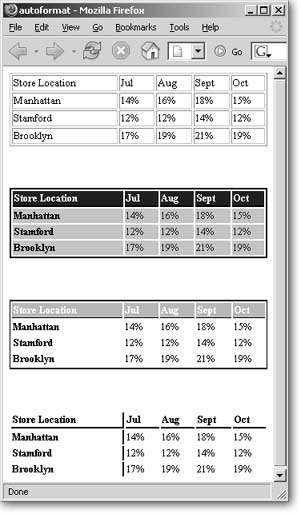
Figure 5-5. AutoFormat can spruce up a plain table (like the one at top) in a jiffy. FrontPage offers a variety of AutoFormat styles, a few of which are pictured here. This quick formatting tool can really make the information you're presenting easier to read.
Nested Tables
Tables really help structure a page so you can place elements where you want them. However, you might find that you want to exercise that same control inside a table. For instance, you may find that a table cell in one spot is too big or the wrong size for the material you want to put in it.
You can enter anything in a table cell: text, pictures, and even other tables. If you have a large cell that you want to divide, you can insert a table within it to manage the space. That's known as nesting. You can even nest another table within that nested table. But before you let your M. C. Escher instincts run wild, it's best to stop here and refrain from nesting yet another within that last table. Excessive nesting can slow the loading speed of your page.
Before you resort to nesting, check out all the options for managing cells that the rest of this tutorial covers. A simpler solutionlike merging or splitting cells might solve your problem.
