A paragraph is just a collection of a bunch of characters, so what's the difference? Start at the basics. When you type a few words and press Enter, you create a paragraph. FrontPage's Design view indicates a paragraph break with a  paragraph mark. (Click the Show All button on the Standard toolbar to reveal paragraph marks.) If you switch to Code view, you'll see that in the HTML, each paragraph is surrounded by a pair of <p> tags (the closing tag is a </p> tag). This means FrontPage applies certain formatting, like alignment, to entire paragraphs. Web designers often refer to this as block-level formatting. You've already learned how to apply other formatting, like italics or color, on a character level; that is, to a single character, word, or area of text. Paragraph formatting affects an entire block of text everything between the <p> tags, for example.
When you apply paragraph formatting, you don't need to select all the text you want to format. Just click once in the paragraph and then apply the new format.
FrontPage provides a variety of built-in paragraph styles such as headings and lists to help you organize your page. After you've applied one of these styles, you can format other attributes of any paragraph (like changing the alignment or the color), and you can also easily copy formatting from one paragraph to another.
Character and Paragraph Formatting
With FrontPage, you don't really need to know what's happening behind the scenes, but a quick look at the way HTML applies paragraph and character formatting may help you understand the difference between them. That can be helpful if you ever need to dive into your code and do some troubleshooting or fine-tuning. To get an idea of the difference between the two types of formatting, consider this paragraph:
<p align="center">This is a centered paragraph.</p>
Align="center" is the formatting information for this line (which is actually a paragraph, as far as HTML is concerned). Because it resides within the <p> tag, a browser automatically applies center formatting to the entire paragraph.
On the other hand, if you look at how HTML applies character formatting, you can really see that it lives "closer to the text." That is, you apply character formatting to characters and words you want it to affect (rather than entire paragraphs). For example, look at this sentence:
Text can be <b>bold</b> or <i>italic</i> or plain.
All text between the <b> bold tags will display in bold. The sentence would display in a browser like this: Text can be bold or italic or plain.
Basic knowledge of how HTML applies formatting can help you troubleshoot display problems within your site and better understand Cascading Style Sheets later.
Aligning and Spacing Paragraphs
FrontPage automatically sets text to align left (meaning that all lines sit flush against the left margin of the page). Inevitably, you'll want to use a different alignment for some paragraphs. Changing alignment to center, right-align, or justified (where the text aligns with both right and left margins) is very easy.
Justified text can appear differently from browser to browser and even result in some strange occurrenceslike words that repeat when displayed in a browser even though there's no duplicate in the underlying HTML. Don't use this alignment setting unless you know that all viewers have your exact browser make and version.
-
Click inside the paragraph you want to adjust.
-
On the Formatting toolbar, click the button for the alignment you want.
You can also set alignment using the Paragraph Properties dialog box. To open it, select Format » Paragraph.
This dialog box lets you change spacing between individual paragraphs. But, if you want to space out paragraphs throughout an entire page, skip this dialog box.
You'll save loads of time by using either tables (which you'll learn about in Tutorial 5) or Cascading Style Sheets.
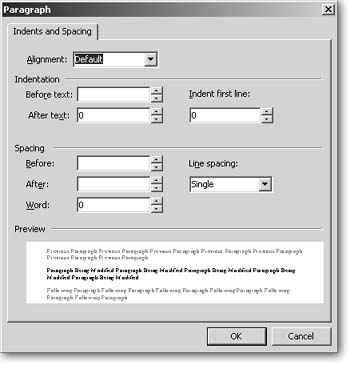
Not only can you set paragraph alignment within Paragraph Properties, but you can fine-tune indentation and spacing between paragraphs. Settings here display in pixels. However, you can type in other units of measure, such as inches (.5 in) or centimeters (8 cm).
Built-in Paragraph Styles
You can create an endless number of custom paragraph styles, which you'll read about in Tutorial 7. However, HTML contains some built-in styles, which appear on the FrontPage Style drop-down list for easy access.
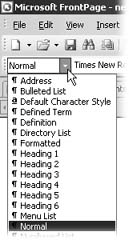
FrontPage features these basic built-in styles. A paragraph mark to the left of a style designates it as a paragraph-level style. An underlined "a" (like the one beside Default Character Style) denotes a character style.
Normal text
For the bulk of your page content, you'll use Normal style. When you start a new blank page, the text is always set to Normal style. FrontPage defines "Normal" as size 3 (12 pt), Times New Roman text. But you're not stuck with that look. You can customize the attributes of the Normal style to match your overall design, as you'll see when you come to learn more about applying styles to pages and entire sites.
Formatted text
The Formatted text option within the Style drop-down list is FrontPage's name for what traditional Web developers call preformatted text. (In fact, if you look at the HTML code, you'll see that its tag is <pre>).
Here's a style for folks who miss their old typewriter. Formatted text looks and acts just like the type that your old Underwood used to plunk out. For instance, when you use Formatted style, the browser is able to see space and tab characters, eliminating the need to insert nonbreaking spaces. But the typewriter nostalgia doesn't end there. Formatted text is also a monospaced font, meaning that each character takes up exactly the same amount of space. Because each character is the same width, you can use the Space bar and Tab key to create columns that line up with one anothersomething that's impossible with any other font. For these reasons, many people use formatted text to display tabular data when inserting an actual table would be unsuitable.
Tables, of course, are a much better solution when you've got tabular data, and it's unlikely you'll use this old-fangled text style on a regular basis. But if you do find a use for the Formatted style, keep in mind thatjust like on your grandfather's typewriterthe text doesn't wrap automatically. That means that unless you insert a paragraph or a line break, Formatted text will extend out and disappear beyond the browser window.
Address
Select Address style when you want to compress and italicize lines of text. Use this style for virtual or physical addresses and contact information.
HTML headings
Most of the text you read, whether it's in your newspaper, a corporate report, is organized and grouped beneath headings. HTML comes with a collection of six built-in heading styles, numbered from largest (Heading 1) to smallest (Heading 6). Figure 2-10 shows you what they look like.
If an author wants to create headings in a program like Microsoft Word, she might specify 16-point bold Arial font for one heading and 14-point Times New Roman for a subheading. In the early days of the Internet, you never knew what fonts a viewer had, so using fonts in this manner to organize a page was impossible. So how did our Web ancestors structure a page clearly? They used HTML headings as a workaround.
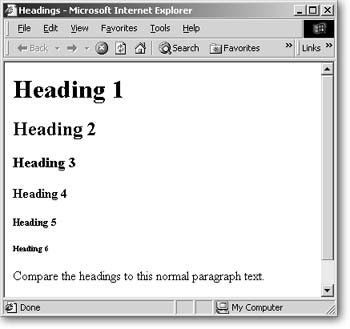
The six HTML headings display in bold and are usually used as headlines. Headings decrease in size as the heading numbers get larger. Heading 6 is especially small, which makes it handy for copyright notices.
HTML headings provide basic structural guidelines to the browser without actually specifying a particular size. In other words, browsers understand certain rules, like Heading 1 is the largest, but it's up to the browser (or the person who's tweaking the browser's preferences) to decide what font to use when displaying a heading.
In spite of the explosion of sophisticated graphics on the Web, headings can still help you outline a page. They're very effective tools that designers often use to apply styles across a Web site. As you'll see in Tutorial 7, Cascading Style Sheets, which can set formatting and display attributes for multiple pages, use headings to apply formatting to different paragraphs. For instance, a style sheet might specify that all of a site's Heading 2 paragraphs be bold, blue, and use Arial font.
Even if you're not that ambitious and just plan to use FrontPage's prepackaged graphic themes and Web site templates, you'll still see these headings throughout your pages, so you should know what they are and how to apply them.
You apply a heading style to a paragraph just as you would any other style.
-
Click to place your cursor within the paragraph you want to turn into a heading.
Remember that a paragraph can consist of nothing more than a phraseor even just a single word.
-
On the Formatting menu, locate the Style drop-down list and click the arrow to display the available styles.
-
Choose the heading style you want.
Copy Formatting from One Paragraph to Another
Suppose you spent a lot of time formatting a paragraph to look just the way you want, but there are a ton of other paragraphs on the page that should match it. Don't worryyou don't have to do all that work over again for every paragraph. Copying paragraph formatting is fast and easy. The Format Painter on the toolbar makes it a breeze.
To copy formatting from one block of text to another:
-
Click to place your cursor in the paragraph that has the style you want to copy.
-
Click the Format Painter button on the Standard toolbar in one of two ways:
-
Click once if you're copying the style to only one paragraph.
-
Double-click if you're copying the style to multiple paragraphs.
The Format Painter brush icon attaches to your cursor, indicating that it's active.
-
-
Click in the paragraph to which you want to apply the style.
FrontPage copies the style to the destination paragraph. If you double-clicked in step 2, the Format Painter remains active so you can copy the style to additional paragraphs.
-
Turn off the Format Painter by clicking the Format Painter button on the toolbar again.
Removing Paragraph Formatting
If you want to strip a paragraph of all formatting, click to place your cursor in the paragraph and select Format » Remove Formatting or press Ctrl+Shift+Z.
