Converting a PowerPoint Presentation into a Web Page
Converting a presentation into HTML format works best if your viewers have Internet Explorer. Otherwise, the results may really disappoint you. In other browsers (or in instances where viewers have configured Internet Explorer not to show active content), a lot of elements in your converted presentation won't display properlyor at all. In those situations, you're better off posting the .pps file.
To convert a presentation into HTML format:
-
Open the presentation you want to convert.
-
Initiate the conversion.
Select File » Save As Web Page.
-
Select a file type to save as.
Within the long drop-down list to the right of "Save as type," choose either "Web Page" or "Single File Web Page" (see the box on Moving From Word Into FrontPage to learn what the difference is).
-
Name the file you're about to create.
In the File Name field, type in a short, descriptive name. (As always don't include capitals, spaces, or special characters.)
-
Click Title and enter a proper page title.
This page title will appear in the browser's title bar. It remains the same, even as viewers move from slide to slide.
-
Select a location.
Browse to the directory where you'd like to save the new HTML file. Ideally, this will be in your Web site.
-
Click Save As or Publish (for more options).
If you click Save As, PowerPoint creates the new HTML version of your presentation.
If you click Publish, you can set some additional preferences. The "Publish as Web Page" dialog box opens. Use it to tell FrontPage which slides you want to convert to HTML pages. If you want to set a special color format for hyperlinks to your slides, click "Web options."
Even if you have viewers using very old browsers, leave "Microsoft Internet Explorer 4.0 or later" selected in the Publish as Web Page dialog box. Viewers who can't see special effects like an expanding outline will still see everything on your slides.
Once you've set all your preferences, click Publish. PowerPoint converts the file.
-
Test the results in your browser.
Take a look at your slideshow to make sure everything works and that the HTML version of you presentation looks the way you want it to (see Figure 18-3).
If you just want to post one of your presentation's slides on your site, try saving it as an image file instead. To do so, select File » Save As and select .gif from the file format choices at the bottom of the dialog box. You can insert the GIF within a Web page or just link directly to the GIF file.
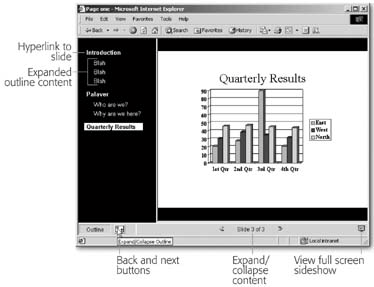
Figure 18-3. The HTML format of a PowerPoint presentation gives viewers a few nifty control features. They can expand or shrink your outline, click links to your slides, and move backward or forward through your presentation.
Copying Content from PowerPoint into FrontPage
Maybe you just want to get part of a slide onto a Web page. In that case, a simple copy and paste maneuver might be all that's required.
You can select the elements in PowerPoint, and then copy (Ctrl+C) and paste (Ctrl+V) them directly into FrontPage. However, one of the big problems with PowerPoint is that most of its content comes into FrontPage in VML format, which isn't compatible with the Web. (To read of the evils of VML format, take a look at Code Cleanup Optimizing HTML.)
When you paste, FrontPage automatically retains the PowerPoint-infected source formatting, which means that slide elements remain in their native VML format. In this scenario, your only option (if you want your site to remain Web-friendly) is to click the paste icon (see Figure 18-4) and select "Paste as an Image Tag."
Things will go better if you bring text and pictures in separately. In PowerPoint, select only text (not the text box that encloses it) and paste it into FrontPage without source formatting. Likewise, select an image in PowerPoint, copy it, and then paste it into FrontPage, where it appears as a regular image tag. When you save the page, FrontPage prompts you to save the image file in your site.
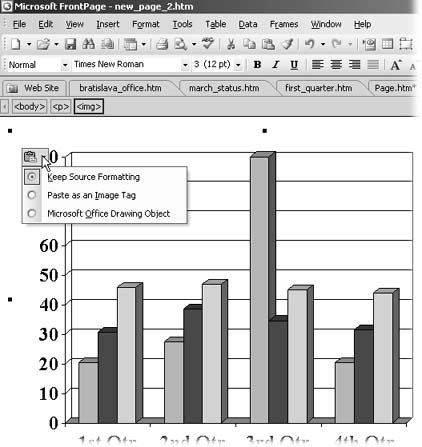
Figure 18-4. When you paste content from PowerPoint into FrontPage, you'll see some new options on the paste icon. Both Keep Source Formatting and Microsoft Office Drawing Object pastes content in the dreaded VML format.
See Cleanup Optimizing HTML for details on what's wrong with VML.
