Well, you can. FrontPage lets you vet the data a visitor enters into a form. You can set certain parameters. For example, you might specify that a text field can't be blank, or that another must include only numeric characters. If the content entered by a visitor doesn't match the rules you set, the browser won't send the information onto the server. This process is called form field validation.
FrontPage activates validation by inserting either JavaScript or VBScript in your Web page. Out of the box, the program is set to add JavaScript to handle this job. If you want to switch to VBScript for some reason, select Tools » Site Settings and click the Advanced tab. Then change the "Default validation script language" selection.
Accessing Validation Settings
You can validate text boxes, drop-down boxes, and option buttons. To access a field's validation settings, double-click the element to open its Form Field Properties dialog box and click Validation at the bottom. Instructions for configuring field validation for each element type follow.
Validating Text Fields
Once you've opened the Text Box Validation dialog box (see Figure 15-7), you can set all sorts of parameters for text boxes and text area boxes.
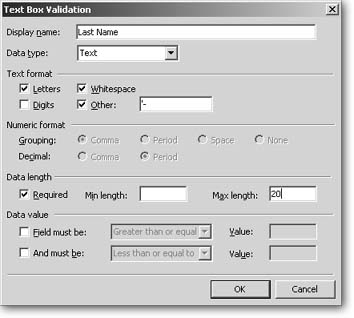
Figure 15-7. The Text Box Validation dialog box looks complicated, but once you make a choice in the Data Type drop-down list, FrontPage activates only the relevant optionseverything else is greyed out.
Selecting a data type
First, select one of the following data types from the drop-down list. (Making a choice here opens up further options.)
-
No Constraints. This is FrontPage's automatic setting for all text fields. When you leave this selected, FrontPage won't apply any validation whatsoever.
-
Text. The field accepts only alphanumeric characters. If you choose this data type, the following checkbox options open up in the Text format section. (You can check more than one.)
-
Letters. Turn on this checkbox if you want the field to accept only alphabetic characters.
-
Digits. Turn on this checkbox if the field should accept only numeric characters.
-
Whitespace. Turn on this checkbox if you'll let a visitor enter spaces, tabs, and paragraph breaks.
-
Other. Turn on this checkbox if you want to allow other special characters (like @, or an apostrophe, comma, or period). Then type those characters in the box next to the word "Other."
-
-
Integer. The field can contain only whole numbers. If you select this option, FrontPage lets you make "Grouping" settings within the Numeric format section. Specify whether you'll let visitors format integers with a comma (5,000), period (5.000), space (5 000), or no additional characters (5000).
-
Number. The box can contain only whole numbers or decimals. If you select this option, FrontPage lets you set both grouping (as explained in the previous entry) and decimal notation within the Numeric format section. Select the character you want visitors to enter as the decimal charactera comma or period. The decimal character must be different than the grouping character.
Entering a display name
Once you've selected options within the Data Type field (as explained above), then FrontPage lets you enter a display name. This name should match the label you gave this text field on your Web page, because FrontPage will use it in any error messages that the validation process displays to the viewer. Make it easy for your visitors to identify what they entered incorrectly.
Requiring date entry and length
If this is a text field that you don't want a visitor to leave blank, then turn on the Required checkbox in the Data Length section. Doing so automatically stipulates that the minimum length of that field will be one character and activates the Min Length field beside it (so you can up the minimum if you want). You can validate length in the following ways:
-
Min Length. Enter the lowest number of characters the field will accept. For example, limit a Zip code field to not less than five numbers.
-
Max Length. Enter the highest number of characters the field will accept. Use this option to avoid getting a novel in your text field.
Whenever possible, let visitors know where you've applied validation settings. For example, mark all required fields with an asterisk and put a message to this effect at the top of your page.
Setting data value
Use fields at the very bottom of this dialog box to restrict the values a visitor may enter. You'll want to use this option only with numeric values. For example, you can specify that a number be greater than 5 but less than 500.
If you set the data value after you've chosen Text or No Constraints as the Data Type, data values won't be of much use. In this situation, character order rules. In other words, the letter or number that comes first sequentially is deemed less than those that come later in the alphabet. So "a" is less than "n," because "a" comes before "n" in the alphabet. Likewise, "134" is less than "2" because 1 comes before 2 sequentially.
Validating Drop-Down Boxes
If your drop-down box accepts only one choice from a visitor (this option is set within the Drop-Down Box Properties dialog box, as explained on Creating A Form Manually), then validation options are simple. To force the visitor to make a selection, turn on the "Data required" checkbox. If you've included a first choice that's not really an option, but just some text that says "Select an item below," and you don't want this to be a valid entry, turn on the "Disallow first choice" checkbox.
If your drop-down box accepts multiple choices, then you can set two additional options beneath the "Data required" checkbox: enter the minimum number of items a visitor can select and/or enter the maximum number she can select.
Validating Option Buttons
When it comes to option buttons, all you can do is make sure that a visitor makes a selection. Once you've accessed the Option Button Validation dialog box via the field's Properties dialog box, you can turn on the "Data required" checkbox and enter a display name. Again, make sure this name matches the general label or question that the group of Option buttons poses. This way, if this validation generates an error, a visitor knows where to make a correction.
