The Problem:
Can I close all my open documents at the same time?
The Solution:
Yep. Shift-click the File menu, and then click Close All. You'll be prompted to save any unsaved changes, as usual. Alternatively, if you find Shift-clicking awkward, you can choose Tools » Customize and put a Close All button on a toolbar or menu.
You can also close all documents by exiting Word and restarting it. However, what you'll more often want to do is close all the open documents except the one you're working on. To do so, you need a macro.
Change Word's Default Folder for Saving Documents
The Problem:
Word always wants me to save my documents in the My Documents folder. I suppose this folder makes sense for many users, but I have other ideas.
The Solution:
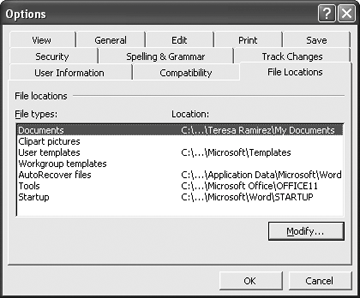
You can change the default folder easily. Choose Tools » Options, click the File Locations tab (see Figure 2-2), select Documents in the "File types" list, and click the Modify button. In the Modify Location dialog box, select the folder you want to use, and click the OK button.
From the File Locations tab of the Options dialog box, you can also change the default folders for clip-art pictures, user templates, workgroup templates, AutoRecover files, tools, and startup files.
Figure 2-2. You can change the default folder for saving documents by using the File Locations tab of the Options dialog box.