The Problem:
I need a way to move quickly from one part of a document to another. Hasn't Word got one?
The Solution:
Word offers several ways of moving quickly about a document: bookmarks, browse objects, and Go To.
A bookmark is a marker in a document. A bookmark can either mark a particular point (between characters or objects) or enclose one or more objects: a character, a word, a graphic, and so on. Bookmarks are hidden by default, but you can display them if you choose (see the next Annoyance).
Pretty much everything you do with bookmarks involves the Insert » Bookmark command:
-
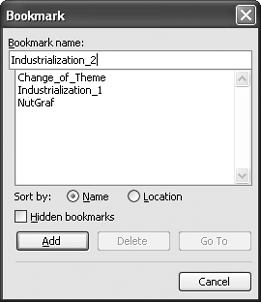
To insert a bookmark, place the insertion point at the appropriate point or select the objects you want to include in the bookmark. Then choose Insert » Bookmark to display the Bookmark dialog box (see Figure 3-14), type an appropriately formatted name for the bookmark, and click the Add button.
Bookmark names must start with a letter (not a number); can contain letters, numbers, and underscores after that; and can be up to 40 characters long. Each bookmark name must be unique in the document.
-
To go to a particular bookmark, choose Insert » Bookmark, click the bookmark, and then click the Go To button.
-
To delete a bookmark, choose Insert » Bookmark, click the bookmark, and then click the Delete button.
Figure 3-14. Bookmarks provide a handy means of accessing specific parts of a document.