Users generally prefer to run macros via either a shortcut key or a button they can simply click, instead of having to hunt through menus and dialog boxes. The most popular way to access a button is from the Forms toolbar, available by selecting View » Toolbars » Forms. These buttons, in our opinion, are the best choice for running macros, especially recorded macros, because recorded macros often require the user to be on a specific worksheet when the macro is run. Simply put, recorded macros always use ActiveSheet if you recorded the macro without changing sheets. This means that if the user is not on the required worksheet (in other words, the same one you were on when recording), the recorded macro will often "bug out" and/or make changes on the wrong sheet. By using a button on a worksheet, you can force the user to navigate to that worksheet button to set the right conditions for the macro before clicking it.
Why a button from the Forms toolbar and not the Control Toolbox toolbar? Buttons are almost always used to detect a mouse click and then run a specified macro. You should use a command button from the Control Toolbox toolbar only when you need to determine other events such as a double-click, a right-click, and so on. The controls on the Control Toolbox toolbar are known as ActiveX controls, and using them to only run a macro adds unnecessary overhead to Excel, especially if you use a lot of buttons. It is akin to using a sledgehammer to bang in a nail.
When you have a lot of buttons in a workbook and each button is used to run a specified macro, you can attach the macros to the buttons by right-clicking the button border and choosing Assign Macro. Then find the correct macro in the Assign Macro dialog, as shown in figure.
Figure. Print button highlighted and Assign Macro dialog active, with macro highlighted
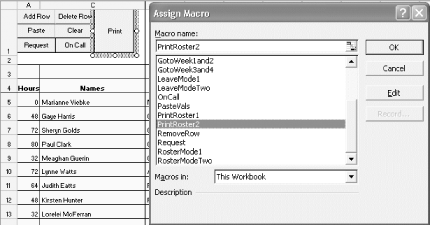
Because each button is usually used to run a different macro, often you must scroll through the entire macro list to find the correct one. There is a really simple way you can assign all the buttons to the same macro but still have each button run a different macro.
Place the following code into any standard module. Select Tools » Macro » Visual Basic Editor (Alt/Option-F11) and create a new module by selecting Insert » Module and then entering the following code:
Sub WhichButton( )
    Run Application.Caller
End Sub
Now you need to give each button the same name as the macro it should run. To name a button from the Forms toolbar, simply left-click it, then replace the name shown in the Name box (at the left of the Formula bar) with the name of the macro the button should run. Do the same for all buttons. Now, if you named a button Macro1 and then assigned it to the macro WhichButton, when clicked it will run the macro Macro1.
