- Default Personal Template Folder Location
- Saving a Workbook as a Template
- Making a New Workbook From a Template
- Using Worksheet-Based Templates
- Creating a Worksheet Template
- Change Excel Default Template
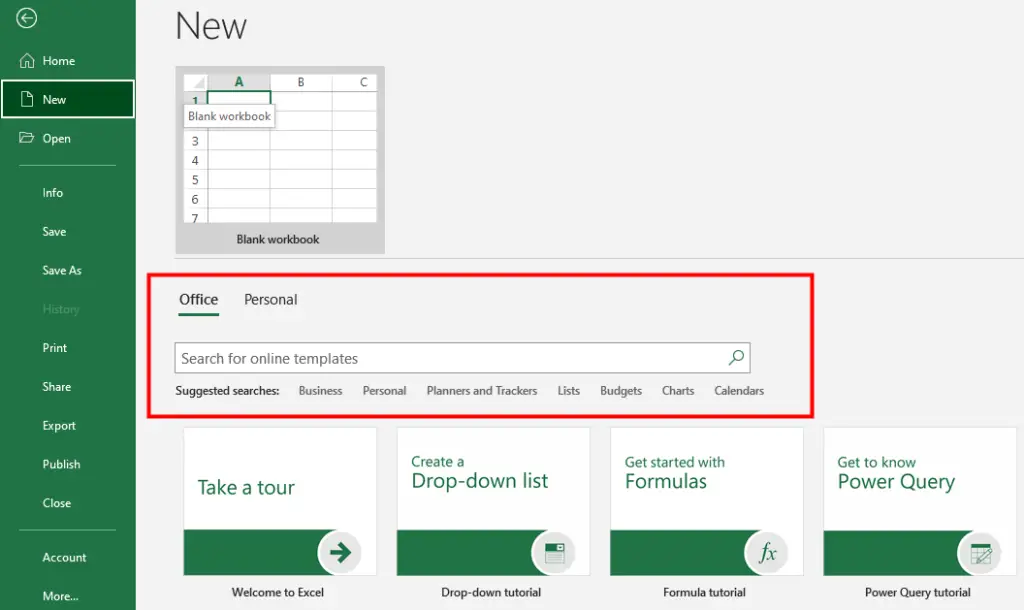
There are many types of Excel templates that can help you organize and analyze data in various ways. To see the available templates, click the File tab and then choose New from the Backstage view. Some of the most common types of Excel templates are:
- Budget templates: Track your income and expenses.
- Invoice templates: Create professional-looking invoices for your clients or customers.
- Project management templates: Plan and manage different aspects of a project.
- Dashboard templates: Create interactive and visual reports that summarize key metrics and trends from your data.
- Calendar templates: Create and share calendars.
Default Personal Template Folder
Before you create your first template, you should identify the path to the default template folder on your computer. To find out the default template folder’s path in Excel, you can follow these steps:
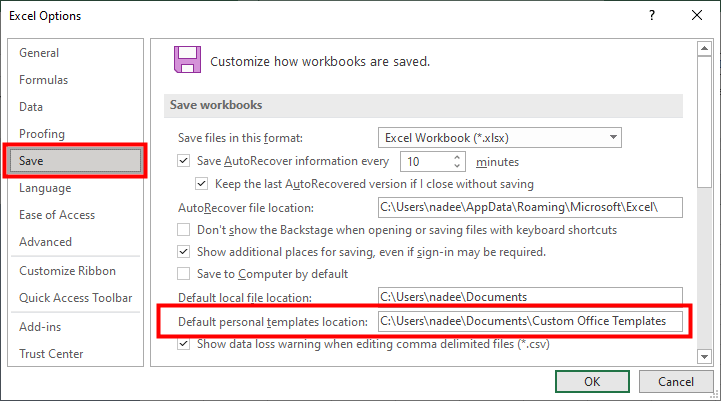
- Click
File > Options. - Click
Savein theExcel Optionsdialog box. - In the
Save workbooks, look for theDefault personal templates locationbox.
This is where Excel saves your custom templates by default.
Saving a Workbook as a Template
You can turn any workbook into a template by saving it with an .xltx extension (or .xltm if it has macros), which is one of the options in the Save as type dialog box.
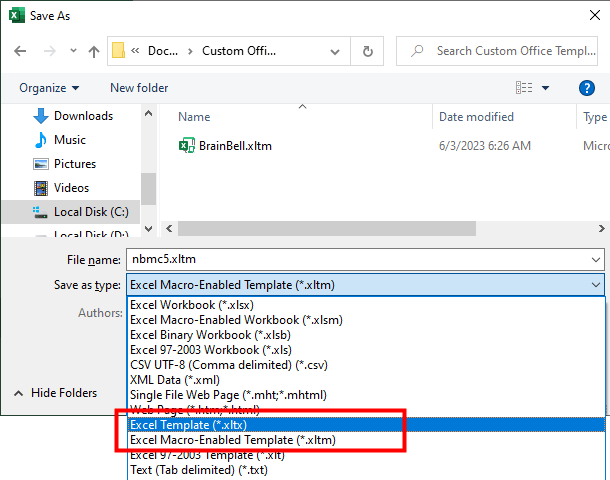
This way, you can reuse the workbook structure and formatting for other projects. If you need to modify the template, you can open it as a regular workbook and edit it. To save your changes, click the Save button or press CTRL+S the file will remain a template.
Make a New Workbook From a Template
To create a new workbook from a template, follow these steps:
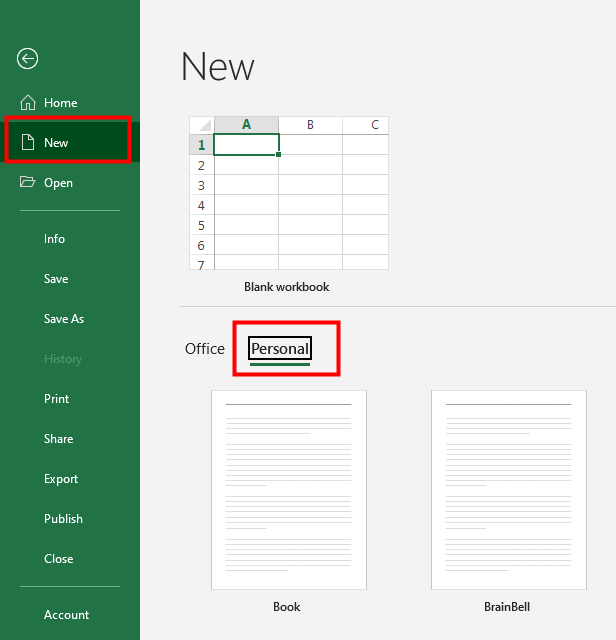
- Click on the
Filetab and selectNewfrom the left. - Search or browse through the “
Suggested searches” to find a template that suits your needs. - Click on
Personalif you want to create a new workbook from a personal template and select the template you want to use. - Customize the workbook by adding your own data, formatting, charts, and other features.
You have now created a new workbook from a template.
Using Worksheet-Based Templates
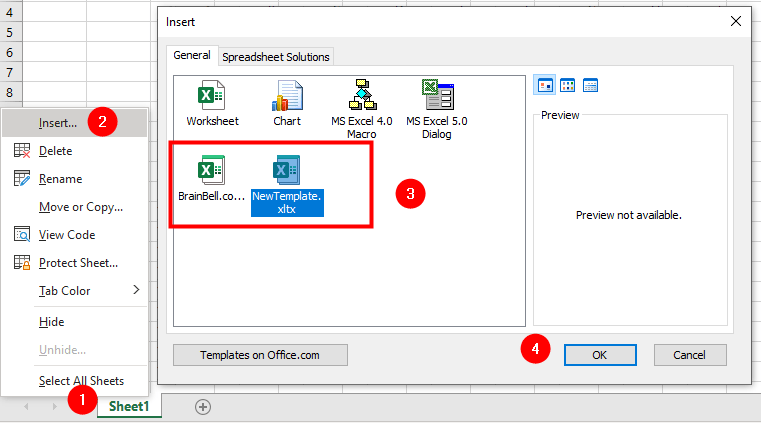
You can also use a worksheet template to insert a new sheet into an existing workbook. To do this, follow these steps:
Right-click on the tab of the sheet where you want to insert the new sheet.
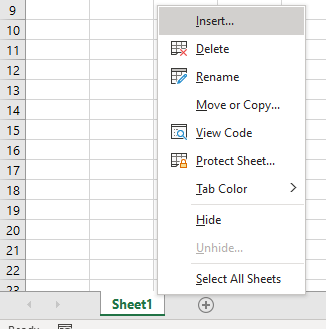
Select Insert from the shortcut menu. This will open the Insert dialog box.
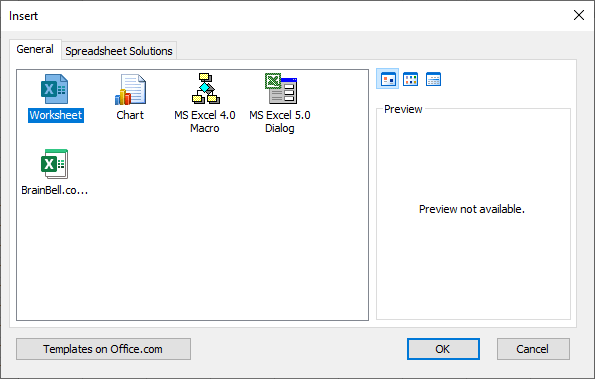
- On the
Generalpage of theInsertdialog box, you will see icons for different types of sheets. These include a blank worksheet, a chart sheet, and any worksheet templates that you have access to. - Click on the icon of the sheet type that you want to insert. OR
- Click on the
Spreadsheet Solutions, it helps you with your financial or personal goals, you will find a range of templates that can assist you with budgeting, planning, billing, tracking, and more.
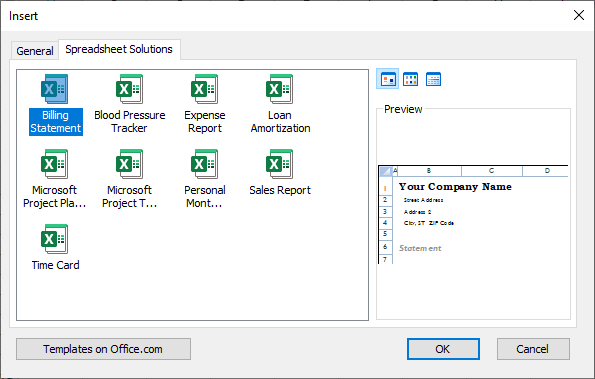
- Click
OKto close theInsertdialog box and insert the new sheet based on the existing template into your workbook.
Creating a Worksheet Template
A worksheet template contains predefined formatting, styles, and data that can be used to create new worksheets quickly and easily. To create a worksheet template, follow these steps:
- Open a new workbook.
- Apply the formatting and styles that you want to use for your template, such as fonts, colors, borders, alignment, etc.
- Enter any data that you want to include in your template, such as labels, headings, formulas, etc.
- Rename worksheets
- Delete extra worksheets.
- Click the
Filetab and selectSave As. - In the
Save Asdialog box selectExcel Template (*.xltx), in theSave as typedrop-down list. - Click
Save.
Worksheet Template Path
You have successfully created the template for your spreadsheet. To make this template accessible from the Insert dialog box, you need to copy it into the following folder:
C:\Users\<username>\AppData\Roaming\Microsoft\Templates
Alternatively, you can use the Run app (Win+R), write %AppData%/Microsoft/Templates and click OK to open the Templates folder.
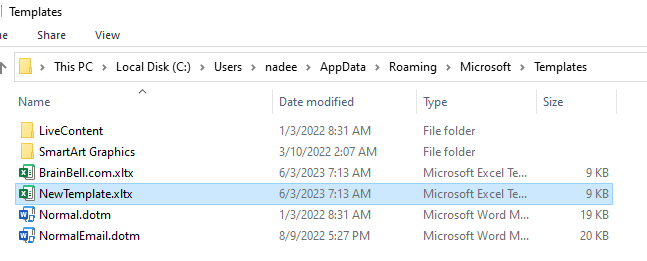
This folder can store all the custom templates that you can use in your spreadsheets. Once you copied the template, you can right-click on any sheet name, and choose Insert, and this template will accessible from the Insert dialog box as shown in the above figure.
Default Template
The default template is a template file that Excel uses when you press CTRL+N to create a new workbook. The default template determines how a new workbook looks like when you create it. You can change Excel’s workbook defaults by following these steps:
- Open a blank workbook and format it as you wish. You can change the font, number format, cell style, page layout, and more.
- Click
File > Save Asand choose a location to save your workbook. - In the
Save Asdialog box, click the “Save as type:” drop-down list and selectExcel Template (*.xltx)orExcel Macro-Enabled Template (*.xltm)if it has macros. - In the File name box, type Book.
- Save the file.
Next, open the the XLStart folder (see How to find the location of XLStart folder). The default path of XLStart folder is:
C:\Users\<username>\AppData\Roaming\Microsoft\Excel\XLSTART\
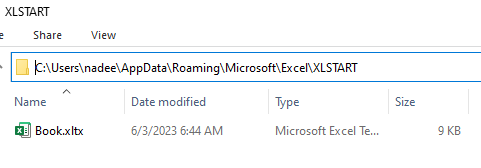
And cut the Book.xltx (or Book.xltm) file and paste into th XLStart folder. Restart the Excel. Now you can create a workbook based on this template by pressing CTRL+N buttons.
