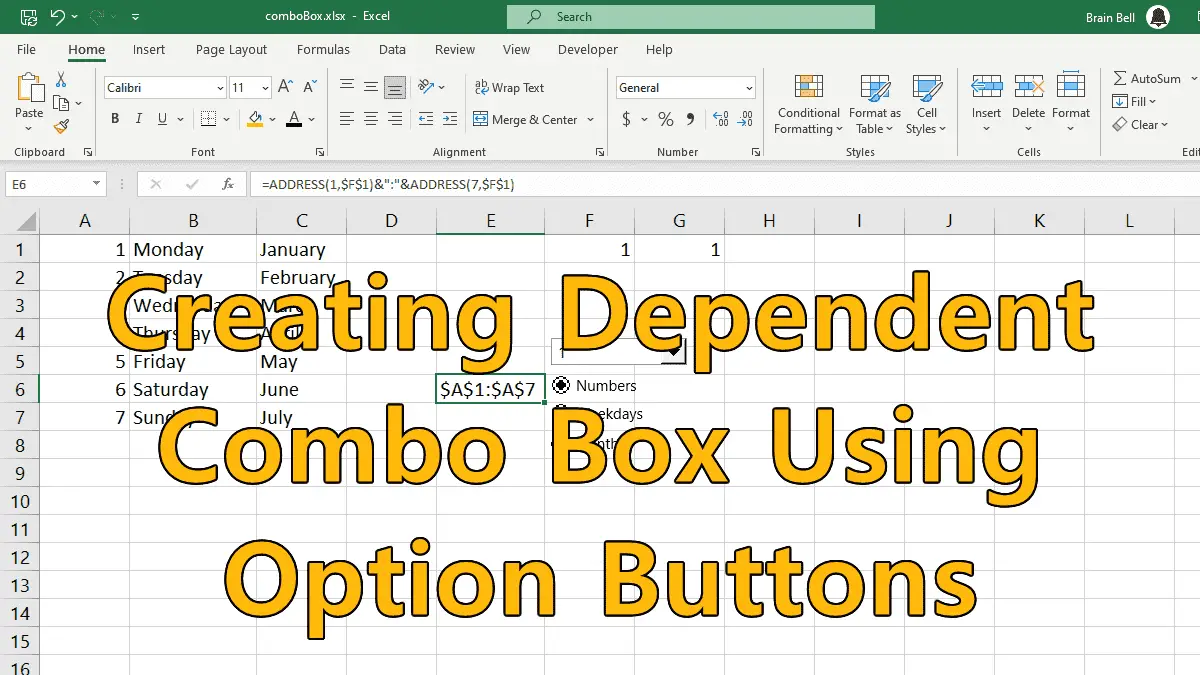
When working with multiple lists, you can force a list to change by using a combination of option buttons plus a Combo Box. See how this can be done:
- In
A1:A7, enter the numbers1through7. - In
B1:B7, enter the days of the week starting withMondayand ending withSunday. - In
C1:C7, enter the monthsJanuarythroughJuly. - Select
Developer » Insert » Option Button. Click the spreadsheet anywhere in three separate spots to place three option buttons on the spreadsheet:- Left-click the first option button, select
Edit Text, then replace the default text with the wordNumbers. - Use the same process for the second option button, replace its text with the word
Weekdays, and - For the third option button, replace its text with the word
Months.
- Left-click the first option button, select
- Select
Developer > Insert > Combo Box. Insert a Combo Box somewhere on the spreadsheet. Using the drag handles, resize the Combo Box to a manageable size and position the option buttons so that they’re directly below the Combo Box.
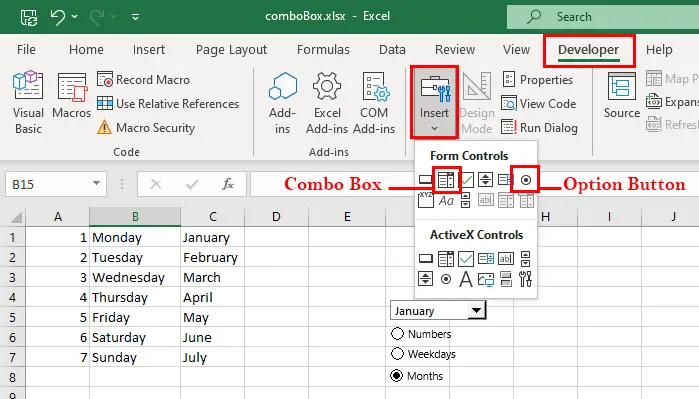
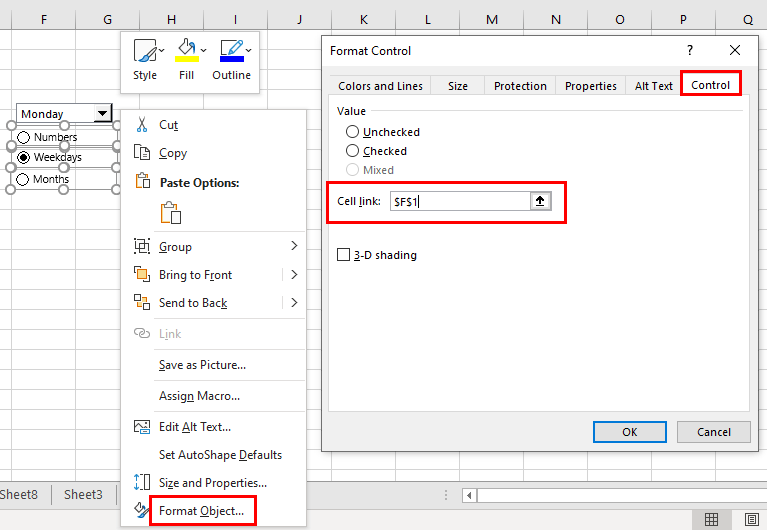
Next, while holding down the Ctrl key, click each option button so that all three are highlighted, then right-click and select Format Control (or Format Object). Specify cell $F$1 as the cell link (make sure it is absolute-use those dollar signs). See the following figure:
Next, in cell E6, enter the following formula:
=ADDRESS(1,$F$1)&":"&ADDRESS(7,$F$1)
The ADDRESS functions we used in this example, 1 represents the first-row number of the lists, while 7 represents the last-row number.
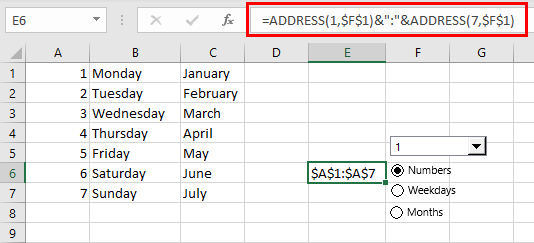
=ADDRESS(1,$F$1)&":"&ADDRESS(7,$F$1) in E6 cellNow follow these steps to create a new named range:
- Select
Formulas » Name Manager. - Click
Newbutton from the Name Manager dialog box. - Type
MyRangein the Name box from the New Name dialog box. - Type this formula
=INDIRECT($E$6)in the Refers To field - Click OK.
- and Close the Nama Manager dialog box.
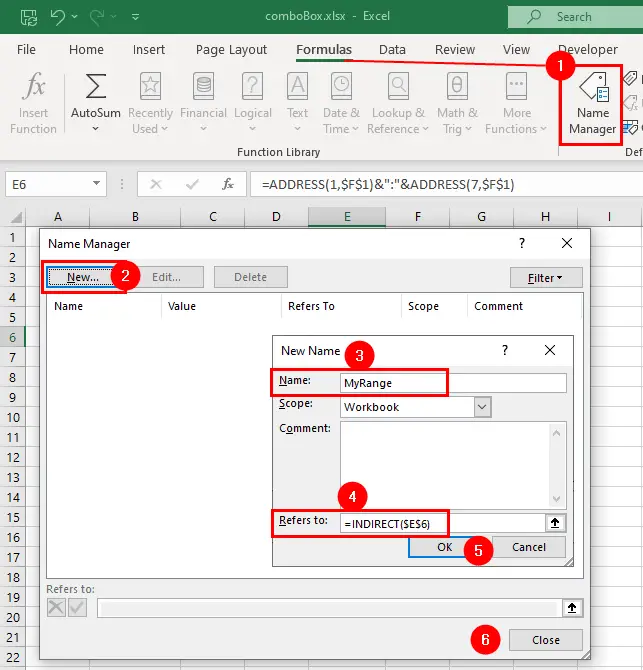
=INDIRECT($E$6) formulaRight-click the Combo Box and select Format Control. Make the Input range MyRange and the cell link $G$1, then click OK. See figure:
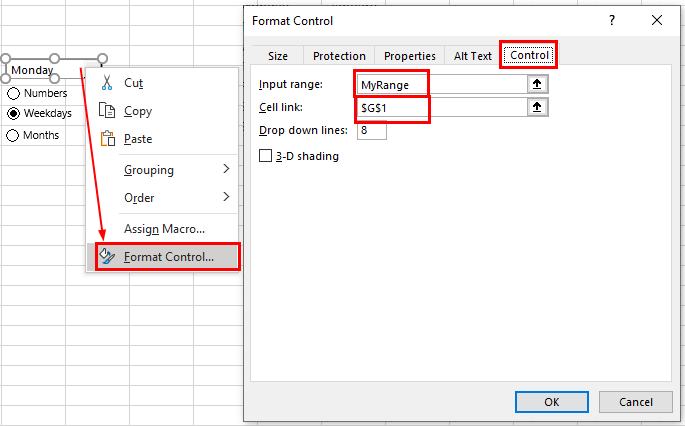
You should be able to select one of the option buttons, and the list within the Combo Box should automatically reflect which option button you chose.
