After this lesson, you will be able to:Estimated lesson time: 40 minutes
Identify the various parts of Windows 95.
Define the principles of the Windows 95 Registry.
Back up the Registry.
Identify the basics of Plug and Play technology.
The Windows 95 File Structure
As mentioned earlier in this tutorial, Windows 95 disk structures are nothing new. Partitions still work in exactly the same way as they did in Windows 3.x systems, so the MS-DOS 7 bootable files of Windows 95 must still be installed to the C drive. Windows 95 still uses 16-bit FAT formats for hard disk drives and floppy disks. Hard disks formatted with Windows 95 are identical to disks formatted with MS-DOS.
NOTE
Using 32-bit FAT provided with Windows 95 OSR2 or Windows 98 reduces the necessity for multiple partitions because cluster size is set at a default of 4 KB.
Windows 95 has also added some new bits of file information. The best one is a "last accessed" date value that tells when a particular file was last used (includes executable files, DLLs, and other nonuser data files such as font files).
Important System Files
Windows 95 starts up differently from earlier versions of Windows. The startup relies on several files that both complement and work independently of each other. We introduced most of these files in earlier sections of this tutorial. Now let's take a look at what makes them tick.
IO.SYS
This is the real-mode operating system for Windows 95. Most of the "old" CONFIG.SYS commands have been incorporated into the IO.SYS. If you recall, the IO.SYS does most of the work that was done by the CONFIG.SYS file in MS-DOS. For that reason, Windows 95 no longer requires a CONFIG.SYS.
IO.SYS includes the files:
- COMMAND.COM.
- HIMEM.SYS.
- IFSHLP.SYS.
- SETVER.EXE.
IO.SYS also includes the following commands:
- dos=high
- files=
- lastdrive=
- buffers=
- stacks=
- shell=
- fcbs=
NOTE
The IO.SYS file cannot be changed or overwritten. The only way to override these commands is to create a CONFIG.SYS or edit an existing CONFIG.SYS. Remember that a CONFIG.SYS file is not required with Windows 95; however, if one exists, it will take precedence over any commands or files in IO.SYS.
EMM386.EXE is a memory manager left over from Windows 3.1, and it is not loaded by IO.SYS. EMM386.EXE is an MS-DOS driver that uses extended memory to simulate expanded memory. Some older MS-DOS-based programs take advantage of this memory in order to run. If you have an application that needs EMM386.EXE in memory, you must add it to your CONFIG.SYS file.
MSDOS.SYS
As mentioned earlier in the tutorial, in the days before Windows 95, MS-DOS used two system files to boot up: IO.SYS and MSDOS.SYS. The IO.SYS file provided the system initialization code, and the MSDOS.SYS file loaded basic system drivers. In Windows 95, MSDOS.SYS functions have been incorporated into the IO.SYS file. MSDOS.SYS is now a special information file. It contains two components: paths used to locate other Windows files and options to add information that helps run older MS-DOS programs. MSDOS.SYS is a text file that can be edited with any file editor. It is hidden and read-only, therefore the attributes must be changed to make the file read/write, nonhidden (the MS-DOS command attrib -r -h filename makes the file accessible).
To open MSDOS.SYS:
- In Windows Explorer, select Options from the View menu to display the Options dialog box.
- Activate the Show All Files option and click OK (this makes all hidden files visible).
- In the Folders window, highlight the root folder (C:\).
- Select MSDOS.SYS and right-click it.
- Select Properties. (See Figure 16.3.)
- Deactivate the Read-only check box and click OK.
-
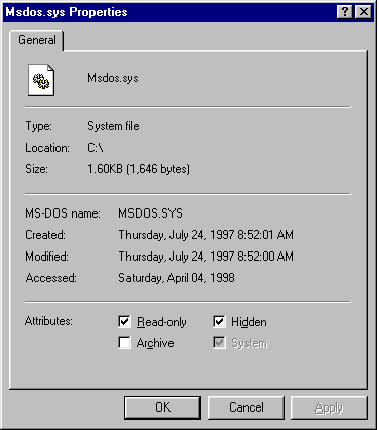
Figure 16.3 MSDOS.SYS properties sheet
The following table lists what you'll find in the [PATH] Group of MSDOS.SYS.
| Setting | Function |
|---|---|
| HostWinBootDrv=C | The drive letter of the system boot drive. Always the C drive. |
| UninstallDir=C:\ | The location of the Windows 95 uninstall file. |
| WinBootDir=C:\WINDOWS | The location of the Windows files needed to boot. |
| WinDir=C:\WINDOWS | The location of the GUI files. |
The following table lists what you'll find in the MSDOS.SYS [OPTION] Group. Unless otherwise specified, the values are either 0 or 1.
| Setting | Function |
|---|---|
| BootConfig= | If you have multiple hardware configurations, this allows boot up of a particular hardware configuration. For example, BootConfig=2 would start configuration 2. |
| BootDelay=X | Determines the number of seconds that the "Starting Windows 95" message appears during startup. Default is 2 seconds. |
| BootGUI=1 | Sets whether to boot the Windows 95 GUI or not. 0 boots to the MS-DOS prompt. |
| Bootkeys=1 | Sets whether to allow use of function keys at boot. 0 disables the keys. |
| BootMenu=0 | Sets whether to load the boot menu. 1 shows the menu. |
| BootMenuDefault=1 | Determines which of the startup menu options is highlighted
automatically when you invoke the menu:
l = Normal |
| BootMulti=0 | Determines whether to prompt for previous version of MS-DOS in boot menu-requires BootMenu=1. |
| Bootsafe=0 | Forces the machine to boot in safe mode. 1 invokes safe mode. |
| Bootwarn=1 | Sets whether to show the "You are in Safe Mode" warning message. 0 does not show the message. |
| BootWin=1 | Determines whether to boot from your previous version of MS-DOS or Windows 95. 0 selects MS-DOS. |
| DisableLog=l | Enables or disables the BOOTLOG.TXT file. 0 disables the log. |
| DoubleBuffer=1 | Sets whether to load VFAT's double buffer or not. 0 doesn't load the buffer. |
| Drvspace=1 or Dblspace=1 | Loads DOUBLESPACE or DRIVESPACE drivers. 0 stops the drivers from loading. |
| LoadTop=l | Loads COMMAND.COM at the top of 640 KB. 0 loads it normally. |
| Logo=l | Sets whether to show the animated Windows logo. 0 doesn't show the logo. |
| Network=1 | Sets whether to add the Boot In Safe Mode With Networking menu to the startup menu. 0 doesn't show it. |
| SystemReg=1 | Determines whether to load the system Registry. 0 prevents the Registry from loading. |
IMPORTANT
Older programs, especially antivirus programs, expect the MSDOS.SYS file to be larger than 1024 bytes. To make MSDOS.SYS large enough to prevent these problems, 19 lines of x's are included to keep the file size large enough for compatibility. (See Figure 16.4.)
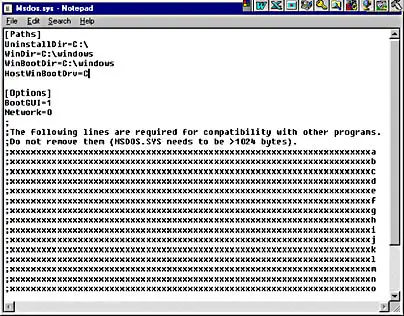
Figure 16.4 MSDOS.SYS in Notepad
