Form GET Method
The second technique that captures data passed from a browser to a server is the HTML form. Manually entering data as part of a URL is unusual. Instead, users typically enter data into an HTML <form> that is then encoded by the browser as part of an HTTP request:
<html>
<head>
  <title>HTML Forms</title>
</head>
<body>
 <form action="example.php" method="GET">
  Write something in the box:<br>
  <input type="text" name="message" value="">
  <input type="submit" value="Submit">
 </form>
</body>
</html>
When the user presses the button labeled Submit, the data entered in the <form> is encoded in an HTTP request for the resource example.php. The resource to be requested is specified in the action attribute of the <form> tag, as is the method used for the HTTP request:
<form action="example.php" method="GET">
In this <form>, there is only one <input> widget with the attribute type="text" and name="message". When the GET method is used, the name of this attribute and its value result is appended to the URL as query string parameters. If the user types Hello World into the text widget and then clicks on Submit, the following URL is requested:
http://localhost/example.php?message=Hello+World
Note that the space character entered by the user in the <form> is automatically encoded in the URL as a plus character by the web browser, then decoded back to a space character by the PHP scripting engine.
Submitting the <form> using the GET method has the same result as manually typing in the URL but the user need not understand URLs and HTTP requests when using <form>.
The form input message can be printed in a PHP script by accessing the global array $_GET using:
<?php
 # File name: example.php
 if (isset ($_GET['message']) )
  echo htmlentities( $_GET['message'] ) .'<hr>';
?>
 <form action="example.php" method="GET">
  Write something in the box:<br>
  <input type="text" name="message" value="">
  <input type="submit" value="Submit">
 </form>
For more information visit: Passing User Data via GET Method in PHP.
Form POST Method
The POST method is used when data need to be stored on the server. It can be used in a <form> instead of the GET method by changing the method="GET" attribute of the <form> tag to method="POST":
<form action="example.php" method="POST">
  Write something in the box:<br>
  <input type="text" name="message" value="">
  <input type="submit" value="Submit">
</form>
When a form uses the POST method when passing user data then the form input message can be printed in a PHP script by accessing the global array $_POST:
<?php
 # File name: example.php
 if (isset ($_POST['message']) )
  echo htmlentities( $_POST['message'] ) .'<hr>';
?>

 <form action="example.php" method="POST">
  Write something in the box:<br>
  <input type="text" name="message" value="">
  <input type="submit" value="Submit">
 </form>
Unlike the GET method that shows the data in the URL, the POST method encoded the data separately from the URL and forms part of the body of the HTTP request.
The POST method also allows you to upload files to the server, we’ll discuss the file uploading technique later.
Acessing Form Data
The following is the recommended way to access form data today in PHP:
$_GET
Retrieves data from a query string and from a form that uses the GET method.$_POST
Retreive form data (if the form uses the POST method)$_REQUEST
This associative array stores the data from a query string, forms (both GET and POST methods) and cookies. (not recommended).
It is recommended to use$_GETfor query string, $_POSTfor forms and $_COOKIEfor cookies (we’ll discuss cookies later).
When you have decided which superglobal array to use (depending on the form’s method), accessing form data is easy: $_GET['parameterName'] or $_POST['fieldName'] retrieves the value in the form element. The keys of these arrays are the names of the form values.
How to check form submission
When both the HTML form and the processing PHP code are on the same page, it is important to find out whether a form is just called in the browser or if the form is submitted (and the data must be processed).
Checking Whether a Form Has Been Submitted:
<?php
 # File name: example.php
 if (isset($_POST['submit'])) {
  echo '<h1>Form submitted!</h1>';
  echo '<p>'.htmlentities ( $_POST['message'] ).'</p>';
 } else {
  printForm();
 }

 function printForm() {
?>
 <form action="example.php" method="POST">
  Write something in the box:<br>
  <input type="text" name="message" value="">
  <input type="submit" name="submit">
 </form>
<?php
 }
Using empty function to determine form submission
if (!empty($_POST)){
    ...
}
You can take several different approaches to this task; something that always works is assigning the Submit button a name and then testing whether this name is present when the form is submitted.
If your form has multiple Submit buttons, give each of them a distinctive name; then, you can check specifically for this name and, therefore, determine which Submit button has been used.
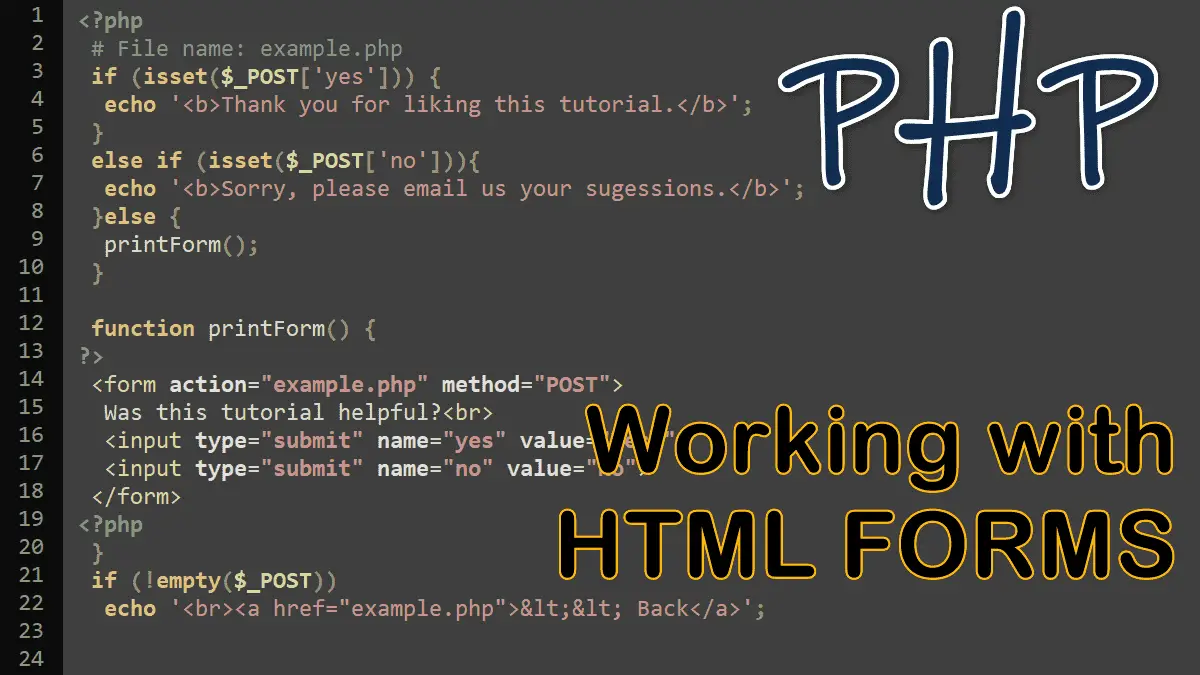
Example: Using multiple submit button
<?php
# File name: example.php
if (isset($_POST['yes'])) {
echo '<b>Thank you for liking this tutorial.</b>';
}
else if (isset($_POST['no'])){
echo '<b>Sorry, please email us your sugessions.</b>';
}else {
printForm();
}
function printForm() {
?>
<form action="example.php" method="POST">
Was this tutorial helpful?<br>
<input type="submit" name="yes" value="Yes!">
<input type="submit" name="no" value="No">
</form>
<?php
}
if (!empty($_POST))
echo '<br><a href="example.php"><< Back</a>';
Demo
Click a button to see how the above code works
Processing Forms in PHP:
