Note
By default, keyboard arrow keys let you navigate between screens on the same level, not between nested screens.
|
1.
|
On the presentation slide, select the forwardBtn instance. In the Behaviors panel (Window > Behaviors) click Add (+), and then select Screen > Go to Next Slide from the menu.
|
|
2.
|
On the presentation slide, select the backBtn instance. In the Behaviors panel (Window > Behaviors) click Add (+), and then select Screen > Go to Previous Slide from the menu.
|
|
3.
|
Select Control > Test Movie, and click the buttons in the SWF file window that appears. You want to make sure your buttons function as expected. When you finish testing your document, close the SWF file window.
|
Add and name a slide
You can easily add slides to your presentation using the context menu in the Screen Outline pane.
|
1.
|
In the Screen Outline pane, select the title thumbnail. Right-click (Windows) or Control-click (Macintosh) and select Insert Screen from the context menu.
|
|
2.
|
Double-click the new slide's name in the Screen Outline pane, and name the slide features.
|
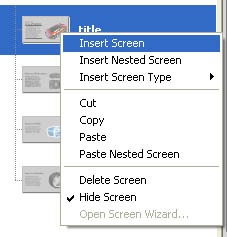 A new screen appears in the Screen Outline pane, at the same level as the title slide. The new slide automatically inherits media from the presentation slide.
by updated
