Inserting Pictures
To insert a picture on a page, place your cursor wherever you want the picture to appear and select Insert » Image » From File, or click the Insert Picture button on the Pictures toolbar. (To access the toolbar, select View » Toolbars » Pictures.) A Picture dialog box like the one in Figure 4-1 opens. Browse to your image file and click Insert. The picture then displays on your Web page.
FrontPage lets you retrieve a graphic that's stored anywhere on your computer so that you can add it to a page on your site. The program prompts you to save the image file in your site when you save the Web page. However, you may want to import a graphic into your site's images folder before you insert it on a pageespecially if the picture's a JPEG (see the "Editing JPEGs" sidebar on Section 4.3.2 to learn why and how).
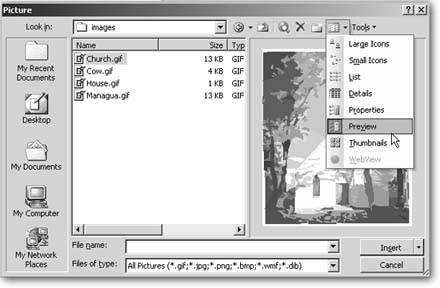
Figure 4-1. If you're having trouble remembering what your images look like, use the Views button on the Picture dialog box toolbar to change the way files are displayed. Both the Preview and Thumbnails options show your actual pictures.
Dragging Pictures onto Your Page
You may find yourself using the same images over and over on many different pages throughout your Web site. To speed things up, FrontPage lets you drag images directly onto your page.
To insert a picture that's already saved within your site, find it within the Folder List and drag it onto your page within the document window. The image appears wherever you drop it.
You can also drag an image file from another location, outside your site's directory. If you've used Windows Explorer to find a file, just drag it onto the page you're editing. When you save your Web page, FrontPage prompts you to save the image file as part of your site. If you want to get a picture file into your site, but not necessarily onto a page right away, you can also drag a file directly into your images folder.
Or, you can drag your pictures around within an individual page. If you drag a picture from one page onto another page within the same Web site, FrontPage moves it to the new location. If the destination page is in a different Web site, the program copies the image, leaving the original in place.
