The program offers many different flavors of templates. These options range from complete ready-to-view sites to an empty site template that lets you do all the work from scratch, if you prefer. This section explains all your options and how to get started using templates.
Can Your PC Be a Web Server?
Maybe you don't have your own personal IT department. It's just you and your laptop. But suddenly you find yourself wishing for a local Web server so you can see all the wondrous things your site can do as you create it. Well, don't despairyou may have hidden powers.
If your computer's operating system is Windows 2000 Server or Professional, Windows Server 2003, or Windows XP Professional (not XP Home Edition), you can install or may already have Web server capabilities. (Owners of other Windows operating systems are out of luck.) To check, open your PC's Control Panel and double-click Add/ Remove Programs. Click Add/Remove Windows Components and scroll down the list that appears until you see Internet Information Services (IIS). (In Server 2003, this is located within Application Server » Details.) If the IIS checkbox is turned on, your PC is ready to get to work as a Web server. If not, read on if you want to install IIS.
To install IIS on Windows 2000 or XP Professional, you'll need your Windows CD. After inserting the CD, highlight IIS within the Add/Remove Windows Components dialog box, and then click Details. Turn on the checkboxes for all components you want to includeat a minimum, you should choose Common Files, Documentation, IIS Snap-in, and World Wide Web Sever. (When you perform this installation, make sure that the FrontPage Themes Server Extensions checkbox is turned off. That version is out of date.) Click Next and follow all the installation prompts. Then, if you want to install the latest FrontPage Server Extensions (FPSE 2002) too, go to www.Microsoft.com/downloads/ and type "FPSE 2002" in the "Search for a download" box.
You can install IIS on Windows Server 2003 in the same manner. Select IIS within the Add/Remove Windows Components dialog box and click details. Server 2003 comes with the latest version of the server extensions, so turn on the Front 2 Server Extensions checkbox, if you want to install them. If you want to install Windows SharePoint Services instead, don't turn on the 2002 Server Extensions checkbox. Instead, you need to get a copy of Windows SharePoint Services later and install it. (To get the software, go to www.microsoft.com/downloads/ and type "SharePoint" in the "Search for a download" box. Share- Point Services works only on Server 2003.)
If you do decide that you want to make your PC a Web server, you should click on over to Microsoft's Web site and read more about the ins and outs of installing IIS. (Visit www.microsoft.com/windowsserver2003/iis/ and also check out www.iisfaq.com.) For example, once you've got IIS installed, you've got to make a host of choices about things like server configuration and site security topics that others have written thick volumes about.
Understanding Templates and Wizards
FrontPage's Web site templates are groups of predesigned pages, many of which come out of the box as working Web sites. Pages in these sites already link to one another and come completely formatted with a fully coordinated graphics scheme. It's kind of like having your mom lay out your Web site for you.
A wizard is also a template, but you and the program work together to create the site. FrontPage prompts you for informationlike site display preferences, company name, address, and so on. Then the program creates a Web site based on the answers you've given. Figure below shows a sample screen from one FrontPage wizard.
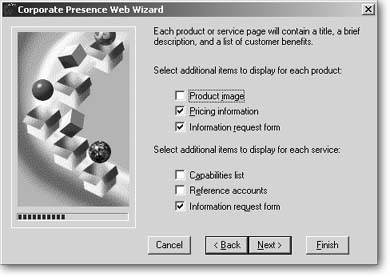
This is a typical Wizard dialog box. To determine how to configure your Web site, FrontPage poses questions to you on a series of screens like this one. Turn on checkboxes, enter information, and click Next to proceed through these dialog boxes, and you've got yourself one genuine Microsoft-composed Web site.
To see all your automated Web site creation options, select File » New. Within the New task pane, select "More web site templates." FrontPage presents you with the following choices:
-
Empty Web Site creates a Web site with no pages in it. This option gives you the most flexibility. If you want to do all your own design and formatting, pick this template.
-
One Page Web Site creates the equivalent of an empty Web site, but gives you a start with one blank, unformatted home page.
-
Corporate Presence Wizard takes your responses and uses them to create a simple corporate Web site with pages set up for contact, service, and product information.
-
Customer Support Web Site creates a basic site designed to help companies provide support services to clients.
-
Database Interface Wizard walks you through the creation of a Web site that taps into a database and uses the information to build the site's pages. See Interacting with a Database for details.
-
Discussion Web Site Wizard creates a site that hosts online discussion boards. Visitors can view entries posted by others and add their own thoughts.
-
Import Web Site Wizard lets you suck in the contents of an existing Web site from the Internet or from your own computer or network. You can also import a regular folder that you'd like to turn into a Web site. Be aware that this method won't deliver all site components. For example, it leaves out FrontPage configuration files that control special functions like navigation. If you've lost the local copy of your Web site and want to get a copy off the live Web server, try reverse publishing it (remote to local) instead (see Publishing your Site for details). In other words, use the import function as a last resort only.
-
Personal Web Site generates an "about me" site, including pages to showcase your hobbies and photos.
-
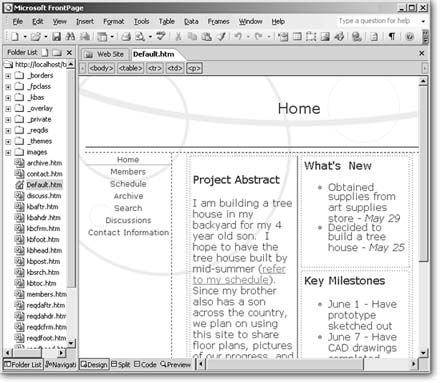
Project Web Site is designed for use by a group of people collaborating on a project (see Figure 10-3). One page lists the project team, others feature the project schedule, status, and discussion area.
-
SharePoint Team Site is similar to the Project Web site, but is much more extensive. This isn't just a Web site template, but an active application that a large staff can use to post documents, discussions, and project information. This option requires Windows SharePoint Services.
-
The Packages tab features Web packages that also require the use of Windows SharePoint Services on your Web server. Like the SharePoint Team Site, these packages are actually interactive Web applications that come bundled with FrontPage. The Packages tab features two kinds of sites: the News and Reviews site includes interactive features like discussions and reviews, and, the Web log package helps to create a blog site that includes search and discussion.
Windows SharePoint Service programs offer a world of options for groups of people who want to coordinate their online activities and projects. In fact, you don't even need FrontPage to use them.
