[Previous] [Contents] [Next]

Correct Automatic Numbering in Numbered Lists


The Problem:

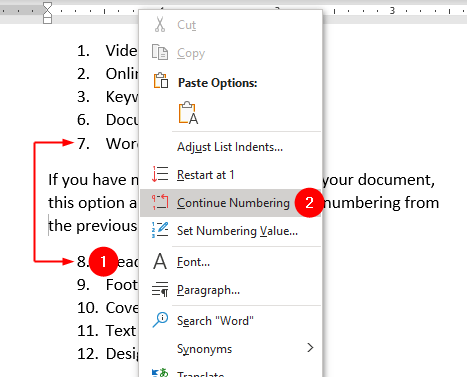
Automatic numbering of lists is wonderful until it goes wrong, and then it's a screaming nightmare. I'm working on a 300-page document that contains about 200 numbered lists explaining procedures. Each time I start a new list, the numbering gets all flaky. First off, Word assumes that I'm trying to continue the previous list, even if it's five pages back. So I right-click in the new list and choose Restart Numbering to tell Word to restart numbering for the list. It's okay for about the first three items, then it gets confused and starts again with number 1. If I right-click in the list and tell Word to continue numbering for this paragraph (which should be number 4), it continues the whole list from the previous list. I've seen this behavior in several versions of Word. I figured the problem would be fixed in Word 2003, but if anything, it's even worse than Word 2000.

The Solution:

Bad news. If this starts happening, you're unlikely to find happiness in your near future. What's going wrong? The short answer is that Word's list templates, the templates on which lists are based, get uncomfortably wobbly once you've created more than a few lists in a document. There are a few ways that you can try to correct the numbering, but the best way to work around this weakness in Word is not to create list templates by clicking the Numbering button on the Formatting toolbar or using the Bullets and Numbering dialog box. Let's take a look at your options for correcting (or avoiding) the problem.

Restart each list manually

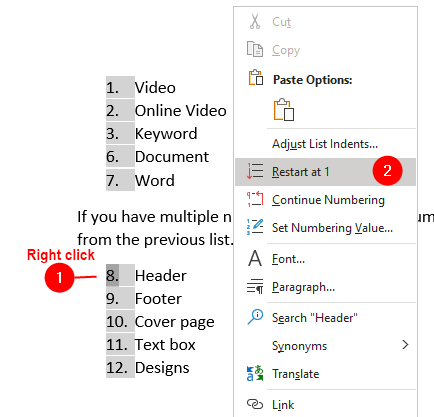
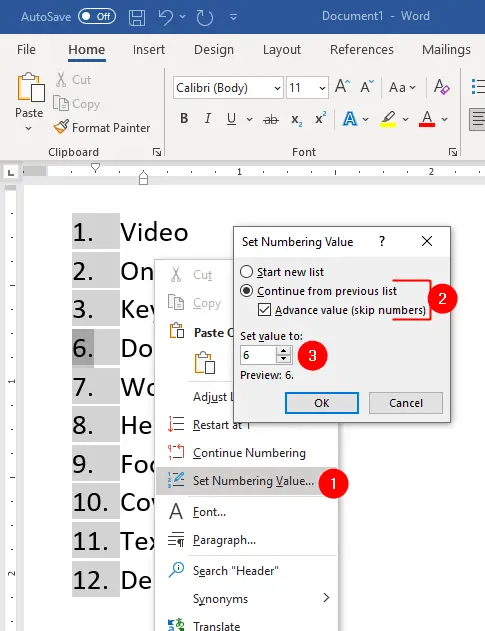
If you have the patience, you can restart each list manually by right-clicking its first item and choosing Restart Numbering from the shortcut menu. Word 2000 doesn't offer this command, so you must display the Bullets and Numbering dialog box, make sure the correct list template is selected, choose the "Restart numbering" option, and click the OK button.

Wait until the document is finished before you restart numbering, because otherwise the numbers may walk as you insert further lists.

Restarting lists manually is seldom a satisfactory solution, but if your goal is simply to get the document printed with steps numbered correctly, it may be enough.


Warning: Restarting a list manually places a restart marker in the first paragraph of the list. If you copy or move this paragraph, the restart marker goes with it. So if you restart a list, then copy the first paragraph and paste it later in the document to create a new list, the numbering on the first list changes from "restart" to "continue," continuing the numbering of the previous list. You'll have to insert a new restart marker at the beginning of that list to preserve the correct numbering.
Reset the list templates

If your list numbering has gone wobbly, try resetting the list templates. Choose Format Bullets and Numbering to display the Bullets and Numbering dialog box. On each tab, click each of the list templates in turn; if the Reset button is available for that list template, click the button and click the Yes button in the confirmation dialog box. When you've finished, click the Close button.

This may fix the numbering problems for the time being. It's usually worth trying, as it takes only a moment or two.

Use a designated style to start each list

If you have the time to design (or redesign) a template to help avoid numbering problems, you can designate a style to start each list. The paragraph in this style is not part of the list, but indicates that the list starts after it. For example, you might create a style named Body List Intro to use for the body paragraph that leads into each list:

  1. In Word 2003 or Word XP, choose Format Styles and Formatting, and then click the New Style button. In Word 2000, choose Format Style, and then click the New Style button.

  2. Name the new Style "Body List Intro" (or your preferred name). Select the style you'll use for your numbered list in the "Style for following paragraph" drop-down list.

  3. Check the "Add to template" box.

  4. Click the Format button and choose Paragraph from the pop-up menu. On the Indents and Spacing tab, choose Level 1 in the "Outline level" drop-down list. Click the OK button to close the Paragraph dialog box.

  5. Click the Format button again, and choose Numbering from the pop-up menu. Click the Outline Numbered tab, click the list template on which you want to base the list, and then click the Customize button.

  6. In the Level list, make sure that 1 is selected, so that you're working with the top level of the listthat is, the introductory paragraph that will not have a number. Delete the contents of the "Number format" box (unless you want your introductory paragraphs to bear a number). Click the More button (unless the dialog box is already displaying a Less button), select Body List Intro in the "Link level to style" drop-down list, and select Nothing in the "Follow number with" drop-down list.

  7. In the Level list, click 2, and edit the format in the "Number format" boxfor example, change it to "1." instead of ".1." (with the leading period). Select the appropriate numbered list style in the "Link level to style" drop-down list. Check the "Restart numbering after" box, and choose Level 1 in the drop-down list. Then click the OK button twice to close the Customize Outline Numbered List dialog box and the New Style dialog box.

When you need to create a list, create a new paragraph and apply your list-intro style to it. If the list-intro style is for a "real" paragraph, type the text for that paragraph. Press Enter to switch to the list style and start the numbering.


Tip: If your documents don't consistently use a particular style as the lead-in to a list, one option is to create a style that consists of a nonprinting frame in the left (or right) margin of the page. You can then use this style to start your lists and enforce correct numbering without adding an extra paragraph or space above the list. Turn on the display of paragraph marks to make sure that the frame is visible so that you don't delete it by accident.
Use SEQ fields to work around list numbering

A useful workaround for list numbering is to use SEQ fields to define a sequence, rather than using Word's Bullets and Numbering feature. This way, you tell Word explicitly where each list starts, so it can't really get confused. Entering SEQ fields manually is tedious, but you can create AutoCorrect entries that enable you to enter them almost effortlessly.


Tip: The advantageand disadvantageof using SEQ fields is that what you're creating isn't a list in Word's standard sense, so Word doesn't treat it as a list. This means that you may need to force renumbering on the paragraphs in the sequence to get the numbering right. Of course, if you're used to having to force Word to restart (or continue) numbering, that shouldn't be too much of a hardship.

To create the AutoCorrect entries:

  1. Start a new paragraph, and press Ctrl+F9 to insert the curly braces that designate the start and end of a field code: {}. (Don't try typing the bracesthat won't work.)

  2. Click inside the braces and type SEQ numlist \r1 to start a sequence of numbered fields starting with 1. Click after the closing brace and type a period and a tab.

  3. Press Shift+Home to select what you've enteredthat is, { SEQ numlist \r1 }. and the tab. Choose Tools AutoCorrect Options (Tools AutoCorrect in Word 2000) to display the AutoCorrect dialog box with your selection entered in the With box. Make sure the "Formatted text" option is selected (it should be selected by default), and type 1] in the Replace box. Click the OK button to add the AutoCorrect entry.

  4. Edit your SEQ field so that it reads { SEQ numlist \n }, which will make it enter the next number in the sequence. Type a period and a tab after the closing brace, and press Shift+Home to select from the insertion point back to the beginning of the line. Choose Tools AutoCorrect Options (Tools AutoCorrect in Word 2000) to display the AutoCorrect dialog box with your selection entered in the With box. Make sure the "Formatted text" option is selected (it should be selected by default), and type x] in the Replace box. Click the OK button to add the AutoCorrect entry.

  5. Close the AutoCorrect dialog box, Shift-click the File menu, and choose Save All to save these new formatted AutoCorrect entries in Normal.dot.

That probably seemed like pretty fair gibberish, but you can now create a numbered list by typing 1] and a tab at the start of the first paragraph and then x] and a tab at the beginning of each subsequent paragraph. Word automatically displays the correct numbers for the fields. Note that if you later go back and insert a new paragraph in the list, the numbers after it will be wrong. To update them, select the list and press F9.


Tip: To begin a list with the numbering continued from the previous list, start the first item of the continuation list with x] rather than 1].

[Previous] [Contents] [Next]