[Previous] [Contents] [Next]

Install Multiple Versions of Word on the Same PC


The Problem:

I need to run two or more versions of Word on the same PC so that I can troubleshoot my clients' Word problems. However, Word just wants to overwrite earlier versions of itself.

The Solution:

Word and the other Office applications usually overwrite previous installations of Office on the general principle that you couldn't possibly want them not to. If you're upgrading to a new version of Office, this behavior makes sense, as it prevents you from leaving the old version of Office hanging around. But it's not good news if you want to be able to test your files with the new version of Office before you commit to it.

When you run Office 2003 Setup, the Type of Installation screen (see Figure 1-1) offers you the choice between the Recommended Install (an upgrade) and another type of install. Office XP Setup provides similar choices with different wording and arrangement. The screens list different applications for the different editions of OfficeProfessional, Professional Enterprise, Small Business, or Standardbut the principles are the same.

USE VIRTUAL MACHINES FOR DEVELOPMENT OR SUPPORT

If you provide support for Word (or other applications) to clients, or if you develop software, consider using virtual machines for your testing and development. A virtual-machine application lets you run a software-based PC within Windows or another operating system. Any changes you make and any crashes that occur are confined to the virtual machine, rather than affecting your productivity applications.

The most widely used virtual-machine applications for Windows are Microsoft's Virtual PC (http://www.microsoft.com/windows/virtualpc/default.mspx) and VMware's VMware Workstation (http://www.vmware.com/products/desktop/ws_features.html). You can download a time-limited evaluation version of each application.

Figure 1-1. Don't allow Office 2003 Setup to press-gang you into upgrading if you actually want to perform a parallel installation.

PROBLEMS RUNNING TWO OR MORE VERSIONS OF WORD ON THE SAME PC

Once you've installed two or three versions of Word on the same PC, you'll soon see why Microsoft doesn't recommend that you do so.

Only one version of Word can be associated with any given file type at a time. If no other version of Word is running, either the associated version or the last version you ran will open when you double-click a document of that file type. If another version of Word is running, the document opens in the running version rather than in the associated version. Usually, the last version you installed grabs the association. To change the association manually, open a Windows Explorer window (e.g., by choosing Start My Computer), choose Tools Folder Options, and work on the File Types tab.

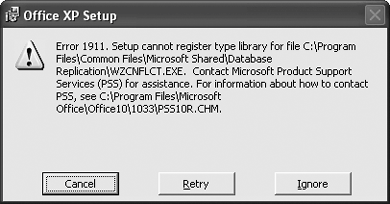
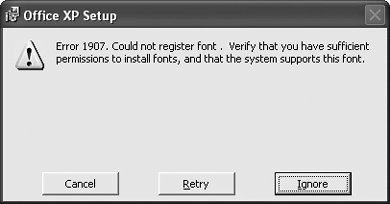
Each time you start a version of Word other than the last version you ran, you'll see the Windows Installer dialog box configuring Word. Let the Windows Installer proceedit's generally harmless and will usually finish in a few seconds. However, sometimes you may run into problems, such as a font registration error (see Figure 1-2). Click the Retry button to retry the registration. If that fails, click the Ignore button. If Word won't run correctly after the Installer finishes, choose Start Control Panel Add or Remove Programs, click the appropriate version of Office, click the Change button, and follow the procedure for repairing Office. If you didn't keep the installation cache on your computer, you may need to supply the Office CD.

Figure 1-2. Running multiple versions of Word on the same installation of Windows may result in errors.
Choose the appropriate type of installfor example, a Complete Install. On the Previous Version of Office screen or the Remove Previous Versions of Office Applications screen, select the "Remove only the following applications" option and uncheck the boxes for applications you want to keep. Outlook 2003 refuses to share a PC with earlier versions of Outlook, so you'll need to sacrifice Outlook 2000 or Outlook XP.


[Previous] [Contents] [Next]