Many of Excel's functions are designed to be used on lists. For most of these functions to work correctly, lists should not contain any blank cells, and column headings should be formatted differently from the data in the list.
When setting up data in Excel, it is good practice to ensure that all cells within a list are occupied. However, many lists are set up in a similar manner to the one shown in following figure.
Figure. Worksheet list set up with blank cells
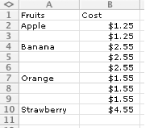
Whereas prices are repeated in the Cost column, the types of fruits in the Fruits column are not. As discussed at the beginning of Workbook and Worksheet, this will create many problems when using features such as Subtotals and PivotTables. In most cases, Excel expects your related data will be set up in a continuous list or table, with no blank cells.
There are two ways in which you can fill blank cells in a list: with a formula and with a macro.
Method 1: Filling Blanks Via a Formula
Say you have a list of entries in column A, similar to the previous example, and within the list you have many blank cells. Here is a quick and easy way to fill those blanks with the values of the cells above them.
Select all the data in column A, select Edit » Go To... (Ctrl-G), and then click Special. Check the Blanks option and click OK. At this point, you have selected only the empty cells within the list. Press = (the equals key), then the up arrow. Holding down the Ctrl key, press Enter.
You can quickly convert formulas to values only by selecting column A in its entirety. Select Edit » Copy (Ctrl-C), then select Edit » Paste Special..., check the Values checkbox, and then click OK.
Method 2: Filling Blanks Via a Macro
If you will be filling in blank cells frequently, you should consider handling this via a macro. The following macro makes this a breeze. To use it, select Tools » Macro » Visual Basic Editor (Alt/Option-F11), then select Insert » Module and enter the following code:
Sub FillBlanks( )
Dim rRange1 As Range, rRange2 As Range
Dim lReply As Integer
    If Selection.Cells.Count = 1 Then
       MsgBox "You must select your list and include the blank cells", _
       vbInformation, "mydomain.com"
       Exit Sub
    ElseIf Selection.Columns.Count > 1 Then
       MsgBox "You must select only one column", _
       vbInformation, "mydomain.com"
       Exit Sub
    End If
   Set rRange1 = Selection
    On Error Resume Next
    Set rRange2 = rRange1.SpecialCells(xlCellTypeBlanks)
    On Error GoTo 0
    If rRange2 Is Nothing Then
       MsgBox "No blank cells Found", _
              vbInformation, "mydomain.com"
        Exit Sub
    End If
    rRange2.FormulaR1C1 = "=R[-1]C"
    lReply = MsgBox("Convert to Values", vbYesNo + vbQuestion, "mydomain.com")
    If lReply = vbYes Then rRange1 = rRange1.Value
End Sub
After entering this code, close the window to get back to Excel, and then save your workbook. Now select Tools » Macro » Macros (Alt/Option-F8), select Fill Blanks, and click Run, or use Options to assign a shortcut key.
