Excel has a very useful feature named conditional formatting (described in Excel Built-in Features). You can find it by selecting Format » Conditional Formatting... on the worksheet menu bar. Conditional formatting enables you to format a cell based on its content. For example, you can change to a red background all cells whose value is greater than 5 but less than 10. Although this is handy, Excel supports only up to three conditions, which sometimes is not enough.
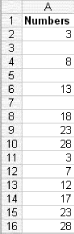
If you want to set more than three conditions, you can use Excel VBA code that is fired automatically whenever a user changes a specified range. To see how this works, say you want to have six separate conditions in the range A1:A10 on a particular worksheet. Set up some data such as that shown in the figure.
Figure. Data setup for conditional formatting experiment
Save your workbook, then activate the worksheet, right-click its Sheet Name tab, select View Code, and enter the following code:
Private Sub Worksheet_Change(ByVal Target As Range)
Dim icolor As Integer
If Not Intersect(Target, Range("A1:A10")) is Nothing Then
 Select Case Target
  Case 1 To 5
     icolor = 6
  Case 6 To 10
     icolor = 12
  Case 11 To 15
     icolor = 7
  Case 16 To 20
     icolor = 53
  Case 21 To 25
     icolor = 15
  Case 26 To 30
     icolor = 42
  Case Else
   'Whatever
End Select
  Target.Interior.ColorIndex = icolor
End If
End Sub
Close the window to get back to your worksheet. Your results should look like figure below.
Figure. What data should look like once the code is entered
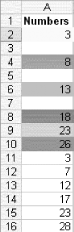
The background color of each cell should have changed based on the number passed to the variable icolor, which in turn passes this number to Target.Interior.ColorIndex. The number that is passed is determined by the line Case x To x. For example, if you enter the number 22 in any cell within the range A1:A10, the number 15 is passed to icolor, and then icolor (now having a value of 15) is passed to Target.Interior.ColorIndex, making the cell gray. Target is always the cell that changed and, thus, fired the code.
