9. Use automatic subtotals because doing so enables you to add a page break after each product. This ensures that each product manager has a clean report with only his or her product on it.
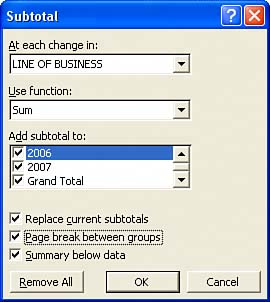
If you were sure that you would always have two years and a total, the code to add subtotals for each Line of Business group would be the following:
' Add Subtotals by Product.
' Be sure to add a page break at each change in product
Selection.Subtotal GroupBy:=1, Function:=xlSum, TotalList:=Array(3, 4, 5), _
    PageBreaks:=True
However, this code fails if you have more or less than one year. The solution is to use this convoluted code to dynamically build a list of the columns to total, based on the number of columns in the report:
Dim TotColumns()
Dim I as Integer
FinalCol = Cells(3, 255).End(xlToLeft).Column
ReDim Preserve TotColumns(1 To FinalCol - 2)
For i = 3 To FinalCol
    TotColumns(i - 2) = i
Next i
Selection.Subtotal GroupBy:=1, Function:=xlSum, TotalList:=TotColumns,_
     Replace:=True, PageBreaks:=True, SummaryBelowData:=True
Finally, with the new totals added to the report, you need to AutoFit the numeric columns again with this code:
Dim GrandRow as Long
' Make sure the columns are wide enough for totals
GrandRow = Range("A65536").End(xlUp).Row
Cells(3, 3).Resize(GrandRow - 2, FinalCol - 2).Columns.AutoFit
Cells(GrandRow, 3).Resize(1, FinalCol - 2).NumberFormat = "#,##0,K"
' Add a page break before the Grand Total row, otherwise
' the product manager for the final Line will have two totals
WSR.HPageBreaks.Add Before:=Cells(GrandRow, 1)
by updated