Listing 3. Code That Adds a New Item Along the Line of Business Dimension
Sub CalcItemsProblem()
    Dim WSD As Worksheet
    Dim PTCache As PivotCache
    Dim PT As PivotTable
    Dim PRange As Range
    Dim FinalRow As Long

    Set WSD = Worksheets("PivotTable")
    Dim WSR As Worksheet

    ' Delete any prior pivot tables
    For Each PT In WSD.PivotTables
        PT.TableRange2.Clear
    Next PT

    ' Define input area and set up a Pivot Cache
    FinalRow = WSD.Cells(Application.Rows.Count, 1).End(xlUp).Row
    FinalCol = WSD.Cells(1, Application.Columns.Count). _
        End(xlToLeft).Column
    Set PRange = WSD.Cells(1, 1).Resize(FinalRow, FinalCol)
    Set PTCache = ActiveWorkbook.PivotCaches.Add(SourceType:= _
        xlDatabase, SourceData:=PRange.Address)

    ' Create the Pivot Table from the Pivot Cache
    Set PT = PTCache.CreatePivotTable(TableDestination:=WSD. _
        Cells(2, FinalCol + 2), TableName:="PivotTable1")

    ' Turn off updating while building the table
    PT.ManualUpdate = True

    ' Set up the row fields
    PT.AddFields RowFields:="Line of Business"

    ' Define calculated item along the product dimension
    PT.PivotFields("Line of Business").CalculatedItems _
        .Add "PrinterCopier", "='Copier Sale'+'Printer Sale'"
    ' Resequence so that the report has printers and copiers first
    PT.PivotFields("Line of Business"). _
        PivotItems("Copier Sale").Position = 1
    PT.PivotFields("Line of Business"). _
        PivotItems("Printer Sale").Position = 2
    PT.PivotFields("Line of Business"). _
        PivotItems("PrinterCopier").Position = 3

    ' Set up the data fields
    With PT.PivotFields("Revenue")
        .Orientation = xlDataField
        .Function = xlSum
        .Position = 1
        .NumberFormat = "#,##0"
    End With

    ' Ensure that you get zeroes instead of blanks in the data area
    PT.NullString = "0"

    ' Calc the pivot table
    PT.ManualUpdate = False
    PT.ManualUpdate = True

End Sub
14. Unless you love restating numbers to the SEC, avoid using calculated items.
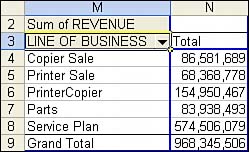
Look closely at the results shown in Figure 14. The calculation for PrinterCopier is correct. PrinterCopier is a total of Printers + Copiers. Some quick math confirms that 86 million + 68 million is about 154 million. However, the grand total should be 154 million + 83 million + 574 million, or about 811 million. Instead, Excel gives you a grand total of $968 million. The total revenue for the company just increased by $150 million. Excel gives the wrong grand total when a field contains both regular and calculated items. The only plausible method for dealing with this is to attempt to hide the products that make up PrinterCopier. The results are shown in Figure 15:
With PT.PivotFields("Line of Business")
    .PivotItems("Copier Sale").Visible = False
    .PivotItems("Printer Sale").Visible = False
End With
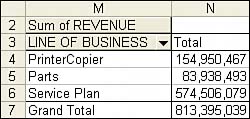
15. After the components that make up the calculated PrinterCopier item are hidden, the total revenue for the company is again correct. However, it would be easier to add a new field to the original data with a Responsibility field.
by updated