To set up a page field in VBA, add the PageFields parameter to the AddFields method. The following line of code creates a pivot table with Region in the page field:
PT.AddFields RowFields:="Model", ColumnFields:="Data", PageFields:="Region"
The preceding line of code sets up the Region page field set to the value (All), which returns all regions. To limit the report to just the North region, use the CurrentPage property:
PT.PivotFields("Region").CurrentPage = "North"
One use of a page field is to build a user form where someone can select a particular region or a particular product. You then use this information to set the CurrentPage property and display the results of the user form.
Another interesting use is to loop through all PivotItems and display them one at a time in the page field. You can quickly produce top 10 reports for each region using this method.
To determine how many regions are available in the data, use PT.PivotFields("Region").PivotItems.Count. Either of these loops would work:
For i = 1 To PT.PivotFields("Region").PivotItems.Count
    PT.PivotFields("Region").CurrentPage = _
            PT.PivotFields("Region").PivotItems(i).Name
    PT.ManualUpdate = False
    PT.ManualUpdate = True
Next i

For Each PivItem In PT.PivotFields("Region").PivotItems
    PT.PivotFields("Region").CurrentPage = PivItem.Name
    PT.ManualUpdate = False
    PT.ManualUpdate = True
Next PivItem
Of course, in both of these loops, the three region reports fly by too quickly to see. In practice, you would want to save each report while it is displayed.
So far in this tutorial, you have been using PT.TableRange2 when copying the data from the pivot table. The TableRange2 property includes all rows of the pivot table, including the page fields. There is also a .TableRange1 property, which excludes the page fields. You can use either statement to get the detail rows:
PT.TableRange2.Offset(3, 0)
PT.TableRange1.Offset(1, 0)
Which you use is your preference, but if you use TableRange2, you won't have problems when you try to delete the pivot table with PT.TableRange2.Clear. If you were to accidentally attempt to clear TableRange1 when there are page fields, you would end up with the dreaded "Cannot move or change part of a pivot table" error.
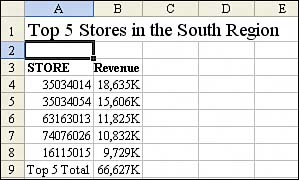
Listing 8 produces a new workbook for each region, as shown in Figure 20.
Listing 8. Code That Creates a New Workbook per Region
Sub Top5ByRegionReport()
    ' Produce a report of top 5 stores for each region
    Dim WSD As Worksheet
    Dim WSR As Worksheet
    Dim WBN As Workbook
    Dim PTCache As PivotCache
    Dim PT As PivotTable
    Dim PRange As Range
    Dim FinalRow As Long

    Set WSD = Worksheets("PivotTable")

    ' Delete any prior pivot tables
    For Each PT In WSD.PivotTables
        PT.TableRange2.Clear
    Next PT

    ' Define input area and set up a Pivot Cache
    FinalRow = WSD.Cells(Application.Rows.Count, 1).End(xlUp).Row
    FinalCol = WSD.Cells(1, Application.Columns.Count). _
        End(xlToLeft).Column
    Set PRange = WSD.Cells(1, 1).Resize(FinalRow, FinalCol)
    Set PTCache = ActiveWorkbook.PivotCaches.Add(SourceType:= _
        xlDatabase, SourceData:=PRange.Address)

    ' Create the Pivot Table from the Pivot Cache
    Set PT = PTCache.CreatePivotTable(TableDestination:=WSD. _
        Cells(2, FinalCol + 2), TableName:="PivotTable1")

    ' Turn off updating while building the table
    PT.ManualUpdate = True

    ' Set up the row fields
    PT.AddFields RowFields:="Store", ColumnFields:="Data", _
        PageFields:="Region"

    ' Set up the data fields
    With PT.PivotFields("Revenue")
        .Orientation = xlDataField
        .Function = xlSum
        .Position = 1
        .NumberFormat = "#,##0,K"
        .Name = "Total Revenue"
    End With

    ' Sort stores descending by sum of revenue
    PT.PivotFields("Store").AutoSort Order:=xlDescending, _
        Field:="Total Revenue"

    ' Show only the top 5 stores
    PT.PivotFields("Store").AutoShow Type:=xlAutomatic, Range:=xlTop, _
        Count:=5, Field:="Total Revenue"

    ' Ensure that you get zeroes instead of blanks in the data area
    PT.NullString = "0"

    ' Calc the pivot table
    PT.ManualUpdate = False
    PT.ManualUpdate = True
    Ctr = 0

    ' Loop through each region
    For Each PivItem In PT.PivotFields("Region").PivotItems
        Ctr = Ctr + 1
        PT.PivotFields("Region").CurrentPage = PivItem.Name
        PT.ManualUpdate = False
        PT.ManualUpdate = True

        ' Create a new blank workbook with one worksheet
        Set WBN = Workbooks.Add(xlWBATWorksheet)
        Set WSR = WBN.Worksheets(1)
        WSR.Name = PivItem.Name
        ' Set up Title for Report
        With WSR.[A1]
            .Value = "Top 5 Stores in the " & PivItem.Name & " Region"
            .Font.Size = 14
        End With

        ' Copy the pivot table data to row 3 of the report sheet
        ' Use offset to eliminate the page & title rows of the pivot table
        PT.TableRange2.Offset(3, 0).Copy
        WSR.[A3].PasteSpecial Paste:=xlPasteValuesAndNumberFormats
        LastRow = WSR.Cells(65536, 1).End(xlUp).Row
        WSR.Cells(LastRow, 1).Value = "Top 5 Total"

        ' Do some basic formatting
        ' Autofit columns, bold the headings, right-align
        WSR.Range(WSR.Range("A2"), WSR.Cells(LastRow, 3)).Columns.AutoFit
        Range("A3").EntireRow.Font.Bold = True
        Range("A3").EntireRow.HorizontalAlignment = xlRight
        Range("A3").HorizontalAlignment = xlLeft
        Range("B3").Value = "Revenue"

        Range("A2").Select

    Next PivItem

    ' Clear the pivot table
    PT.TableRange2.Clear
    Set PTCache = Nothing

    MsgBox Ctr & " Region reports have been created"

End Sub
20. By looping through all items found in the Region page field, the macro produced one workbook for each regional manager.