Because of the limitations of pivot tables, you should generally copy the results of a pivot table to a new location on the worksheet and then delete the original pivot table. The code in CreateSummaryReportUsingPivot() creates a small pivot table. Note that you can set the ColumnGrand and RowGrand properties of the table to False to prevent the totals from being added to the table.
PT.TableRange2 includes the entire pivot table. In this case, this includes the extra row at the top with the button Sum of Revenue. To eliminate that row, the code copies PT.TableRange2, but offsets this selection by one row by using .Offset(1, 0). Depending on the nature of your pivot table, you might need to use an offset of two or more rows to get rid of extraneous information at the top of the pivot table.
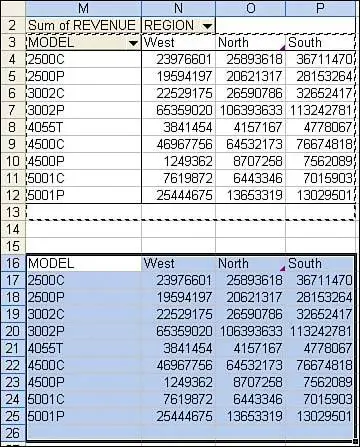
The code copies PT.TableRange2 and does a PasteSpecial to a cell three rows below the current pivot table. At that point in the code, your worksheet appears as shown in Figure 5. The table in M2 is a live pivot table, and the table in M16 is just the copied results.
5. An intermediate result of the macro. Only the summary in M16:P25 will remain after the macro finishes.
You can then totally eliminate the pivot table by applying the Clear method to the entire table. If your code is then going on to do additional formatting, you should remove the pivot cache from memory by setting PTCache equal to Nothing:
Sub CreateSummaryReportUsingPivot()
    ' Use a Pivot Table to create a static summary report
    ' with model going down the rows and regions across
    Dim WSD As Worksheet
    Dim PTCache As PivotCache
    Dim PT As PivotTable
    Dim PRange As Range
    Dim FinalRow As Long
    Dim FinalCol As Long
    Set WSD = Worksheets("PivotTable")

    ' Delete any prior pivot tables
    For Each PT In WSD.PivotTables
        PT.TableRange2.Clear
    Next PT

    ' Define input area and set up a Pivot Cache
    FinalRow = WSD.Cells(Application.Rows.Count, 1).End(xlUp).Row
    FinalCol = WSD.Cells(1, Application.Columns.Count). _
        End(xlToLeft).Column
    Set PRange = WSD.Cells(1, 1).Resize(FinalRow, FinalCol)
    Set PTCache = ActiveWorkbook.PivotCaches.Add(SourceType:= _
        xlDatabase, SourceData:=PRange)

    ' Create the Pivot Table from the Pivot Cache
    Set PT = PTCache.CreatePivotTable(TableDestination:=WSD. _
        Cells(2, FinalCol + 2), TableName:="PivotTable1")

    ' Turn off updating while building the table
    PT.ManualUpdate = True

    ' Set up the row fields
    PT.AddFields RowFields:="Model", ColumnFields:="Region"

    ' Set up the data fields
    With PT.PivotFields("Revenue")
        .Orientation = xlDataField
        .Function = xlSum
        .Position = 1
    End With

    With PT
        .ColumnGrand = False
        .RowGrand = False
        .NullString = "0"
    End With

    ' Calc the pivot table
    PT.ManualUpdate = False
    PT.ManualUpdate = True

    ' PT.TableRange2 contains the results. Move these to J10
    ' as just values and not a real pivot table.
    PT.TableRange2.Offset(1, 0).Copy
    WSD.Cells(5 + PT.TableRange2.Rows.Count, FinalCol + 2). _
        PasteSpecial xlPasteValues

    ' At this point, the worksheet looks like 5

    ' Delete the original Pivot Table & the Pivot Cache
    PT.TableRange2.Clear
    Set PTCache = Nothing
End Sub
The preceding code will create the pivot table. It then copies the results as values and pastes them as values in M16:P25. Figure 5 shows an intermediate result just before the original pivot table is cleared.
So far, you've walked through building the simplest of pivot table reports. Pivot tables offer far more flexibility. Read on for more complex reporting examples.