What should you do (aside from asking him to knock next time)? Well, you can post the Word document as is and link to it, but what if that's not good enough?
Your other options are to convert the entire document into a Web page, or you can copy the content out of Word and paste it into a blank Web page in FrontPage. There are pros and cons to each approach.
Converting Word Files into Web Pages
If you're in a real hurry, you may be tempted to use the fastest method to get your Word content Web-ready, which is the "Save as Web Page" feature on Word's menu. To save your document as a Web page, open your document in Word and select File » Save as Web Page. You can save it directly into your Web site's directory or save it somewhere else and then import it into your site. (To do so, select File » Import, click Add File, then browse to and select the new .htm file Word created.)
Creating Single File Web Pages
A big drawback of Office's "Save as Web Page" option is that it often creates multiple files. So, if you named your new Web file peoria.htm, your Office program creates an accompanying folder called peoria_files to hold image and other assorted files. For the HTML file to work correctly, it needs to access the files in this folder. This complicates things a bit. For instance, if you want to email the Web page, you've got to send along that folder too, as well as explain to your hapless colleague why she needs to save both the file and the folder together.
Thankfully, in Office 2003, there's a way out of this confusion. Instead of saving your file as an HTML Web page, you can save it as an MHTML (MIME encapsulated aggregate HTML) filewhich is a single file Web page. When you do so, whatever Office program you're working in consolidates all the file's information in one fileno additional folder necessary.
To create a .mht file, you just need to select this file type in the Save As dialog box. Instead of selecting "Web Page" in the "Save as type" field, select "Single File Web Page."
This method is the quickest way to turn a .doc file into an .htm file, but it's also the dirtiest. Use it only if you're in a huge hurry to post a document. The resulting files come with a lot of baggage. Word actually creates multiple files (so you can turn the HTML file back into a Word file later), which clutters up your site. Not to mention the fact that the HTML file itself is loaded with unnecessary formatting code.
In fact, FrontPage treats these files differently from regular Web pages. If you double-click one in the folder list, FrontPage opens the document's native programbe it Word or Excelto let you edit the file (see Figure 18-2). If you want to open the file in FrontPage, right-click it, and then select Open With » FrontPage.
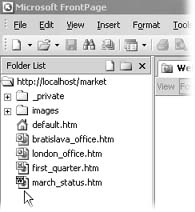
Figure 18-2. FrontPage differentiates between Web pages it's created and files that other programs convert into Web Pages. Either way, the file sports the icon of the application you used to create it originally. Notice the bottom two files in this folder list, which came from Excel and Word, respectively.
Converting with drag-and-drop
There's an even better method than "Save as Web Page" that's just as fast for converting Word documents. If you drag a Word file from anywhere within Windows Explorer onto a blank page in FrontPage, you'll get a Web page that retains your Word formatting but seriously cuts out all the garbage that the Save As method can't shake. If you're in a hurry, this drag-and-drop option is the way to go. Also, the resulting file isn't one of the strange hybrid HTML files pictured in Figure 18-2. It's a bona fide Web page that FrontPage has created and treats like any other in your site.
Copying Content from Word into FrontPage
If you're looking for control over the code you feed into your Web site, another good way to get content out of Word and into FrontPage is the trusty old Copy and Paste methodbut you've got to do it right.
FrontPage's paste options
Don't just paste your Word content in blindly. Use some of FrontPage's advanced paste features to help you create clean pages. When you paste, don't retain the content's original source formatting (which is what FrontPage automatically does when you paste). Instead, click the paste icon that appears and select Keep Text Only. Better yet, don't let FrontPage do anything automatically. Instead of pasting as usual (by pressing Ctrl+V or clicking the paste button on the Standard toolbar), select Edit » Paste Special and choose an HTML format for the pasted text. (FrontPage paste options are covered in detail on Selecting And Moving Text.)
Using Notepad
Many Web authors go through an intermediary step to protect their code from the gobbledygook that comes in with formatted paragraphs from Word. They copy text out of Word and paste into Notepad, Windows's barebones text-editing program. Then, within Notepad, they select and copy the text again and paste it onto a page in FrontPage. Why the extra step? Since Notepad has no formatting features, the program automatically strips out all the frills.
Formatting pasted content
When you leave out Word's formatting, you'll need to spend some time dressing up your page so it looks good with, for example, headings differentiated from regular paragraphs. Of course, if you've applied Cascading Style Sheets to your site, this can be done with a few clicks that apply paragraph and class styles to page elements. (Flip back to Cascading Style Sheets to read how CSS helps you format pages in your site with ease and efficiency.)
Word Documents with Images
I have a Word document that contains a lot of pictures.What's the best way to get it into my site?
If you still have the image files saved separately, the best thing to do is copy the text and paste it into a new Web page (or multiple Web pages) using one of the methods discussed above. Then, make sure your image files are in a Web-friendly format (see Adding Pictures). If they're not, use an image-editing program to convert them into GIFs or JPEGs. Once they're ready, import all the image files into your site and insert or drag them onto the page where you'd like to place them.
If you no longer have copies of the image files, things are bit more challenging. In this situation, often the pictures appear when you open the HTML file in Word, but not on the Web (because they're not GIFs, JPEGs, or PNG files). Ultimately, the best way out of this fix is to save the Word file as a PDF file (Importing Office Files as is) and post that on your site.
